> ## Documentation Index
> Fetch the complete documentation index at: https://help.fieldpulse.com/llms.txt
> Use this file to discover all available pages before exploring further.
# Chat AI Overview
> Add FieldPulse Chat AI to your website to answer visitors in real time, create customer and job records, and book jobs straight onto your schedule.
> **Who uses this:** Admins set up and manage the Chat AI operator in the Operator AI Portal; visitors on your website chat with it directly. **Availability:** Chat AI add-on, part of the Field Intelligence suite — contact the FieldPulse team to enable it on your account.
Chat AI is an AI chat receptionist that lives on your website and works 24/7. It answers visitor questions in real time, books real appointments from your calendar, and creates the [customer](https://www.fieldpulse.com/features/customer-management) and [job](https://www.fieldpulse.com/features/job-management) records in FieldPulse for you — so a visitor who lands on your site at 9pm leaves with a booked appointment instead of a form nobody answers until morning.
## Overview
Chat AI closes a specific workflow breakdown: a customer visits your website ready to book, and there is no one to answer. Phone lines serve callers, but many customers would rather type than wait on hold. When a visitor starts a conversation, Chat AI follows the same flow as a great CSR — understand the request, confirm the service area, offer real appointment times, collect contact details, book the job in FieldPulse, and confirm. It can:
* **Book real appointments.** Chat AI lists your bookable services — with the descriptions, pricing, and duration from your [Booking Portal](/jobs/booking-portal/booking-portal-setup) — checks the visitor's address against your service area, and offers actual calendar availability, narrowing from week to day to exact time slot. The booked job lands in FieldPulse, [scheduled](https://www.fieldpulse.com/features/scheduling-and-dispatching) with an assigned technician.
* **Capture every lead.** If coverage can't be confirmed or the request needs review, the conversation becomes a follow-up for your office instead of a lost visitor.
* **Create customer records** with full contact and address details. If the phone number or email matches an existing customer, Chat AI reuses that record — no duplicates — without ever revealing account details to the person chatting.
* **Notify your team.** Teammates subscribed to **Chat Completed** [notifications](/settings/notifications/notifications-master-guide) receive an SMS or email recap with a summary and a link to the conversation.
* **Speak your customers' languages.** Add additional languages, and visitors can switch from a picker in the chat widget.
Chat AI reads from your FieldPulse setup, so a complete setup means a better experience for every visitor:
| **Your FieldPulse setup** | **What it powers in Chat AI** |
| - | - |
| Booking Portal services and calendar | The services Chat AI offers and the appointment times it books |
| Configured service areas | The coverage check on the visitor's address |
| Notification recipients | Who receives the **Chat Completed** recaps |
## How it works
Chat AI runs every conversation through the same booking flow:
1. **A visitor opens the chat** on your website and describes what they need.
2. **Chat AI confirms the service area** by checking the visitor's address against your configured service areas.
3. **Chat AI offers real appointment times** from your Booking Portal services and team calendar, letting the visitor narrow from week to day to exact time slot.
4. **Chat AI collects contact details** — name, phone number, email, and address.
5. **Chat AI books the job in FieldPulse** with an assigned technician and confirms the appointment with the visitor.
### What Chat AI creates in FieldPulse
When Chat AI books a job, it creates two records so nothing has to be re-entered by hand:
| **Record** | **What Chat AI fills in** |
| - | - |
| **Customer record** | Name, phone number, email address, and address. If the phone number or email matches an existing customer, Chat AI reuses that record instead of creating a duplicate. Tagged **Chat AI Generated**. |
| **Job record** | The service booked from your Booking Portal, the scheduled time slot, and an assigned technician, with a **Job Subtitle** and **Job Tag** of *Chat AI Generated*. |
The **Chat AI Generated** tag on both records lets you filter and run reports to see exactly which customers and jobs came from Chat AI.
## Customizing your chat widget
The chat widget is fully customizable, so it matches your website's branding — your logo, colors, greeting, and even every line of on-screen text.
1. Open the Operator AI Portal at [webai.fieldpulse.com](https://webai.fieldpulse.com) and select **My Company**.
2. In the **Operators** tab, select the edit icon next to your chat operator.
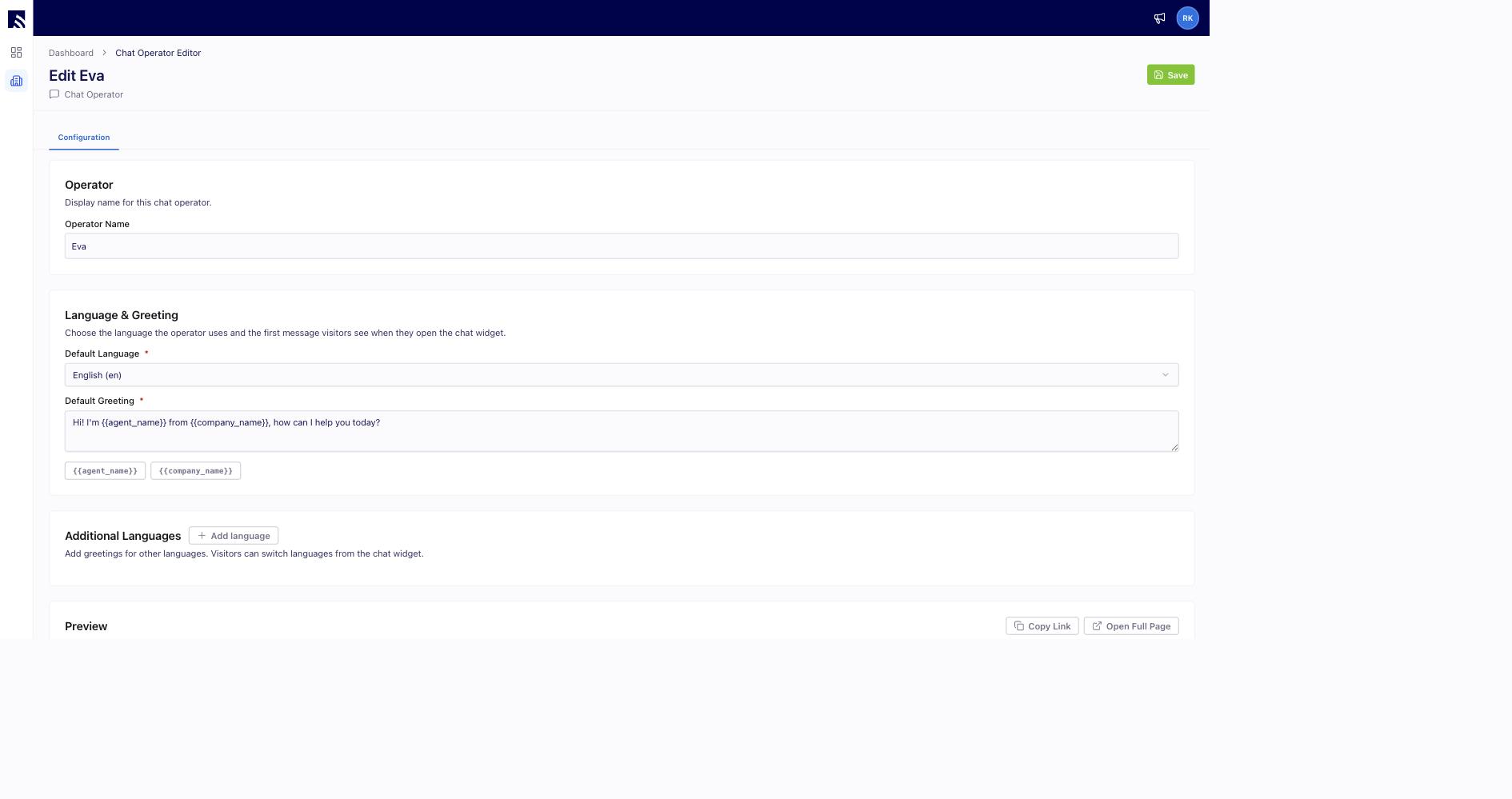
3. Set the **Operator Name** visitors will see, choose the **Default Language**, and write the **Default Greeting** — the first message visitors see when they open the chat widget. Use the `{{agent_name}}` and `{{company_name}}` variables to personalize it, and add **Additional Languages** so visitors can switch languages from the widget.
 4. Use the **Preview** to see the widget with its last saved settings, or select **Open Full Page** to try it in its own tab.
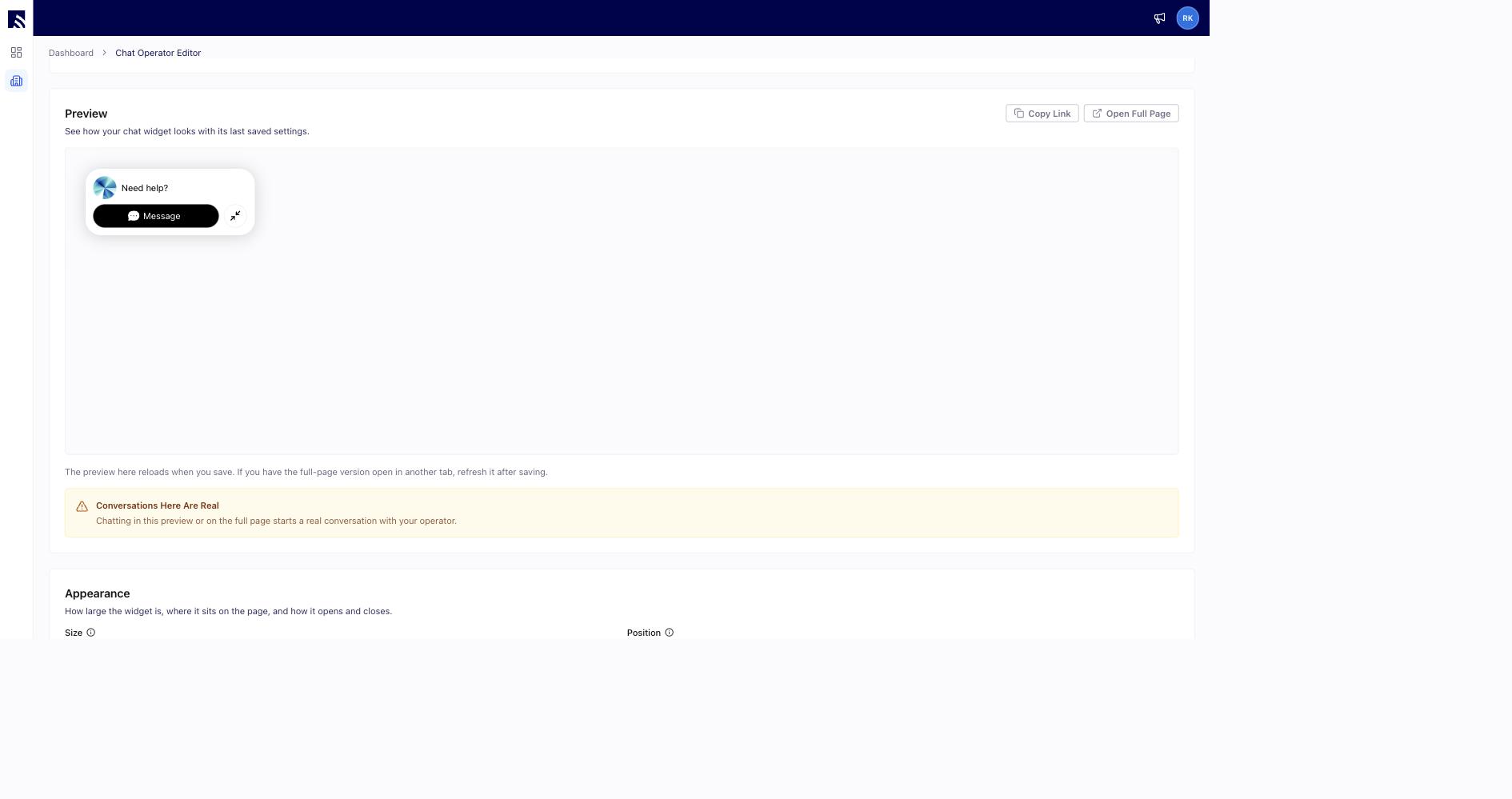
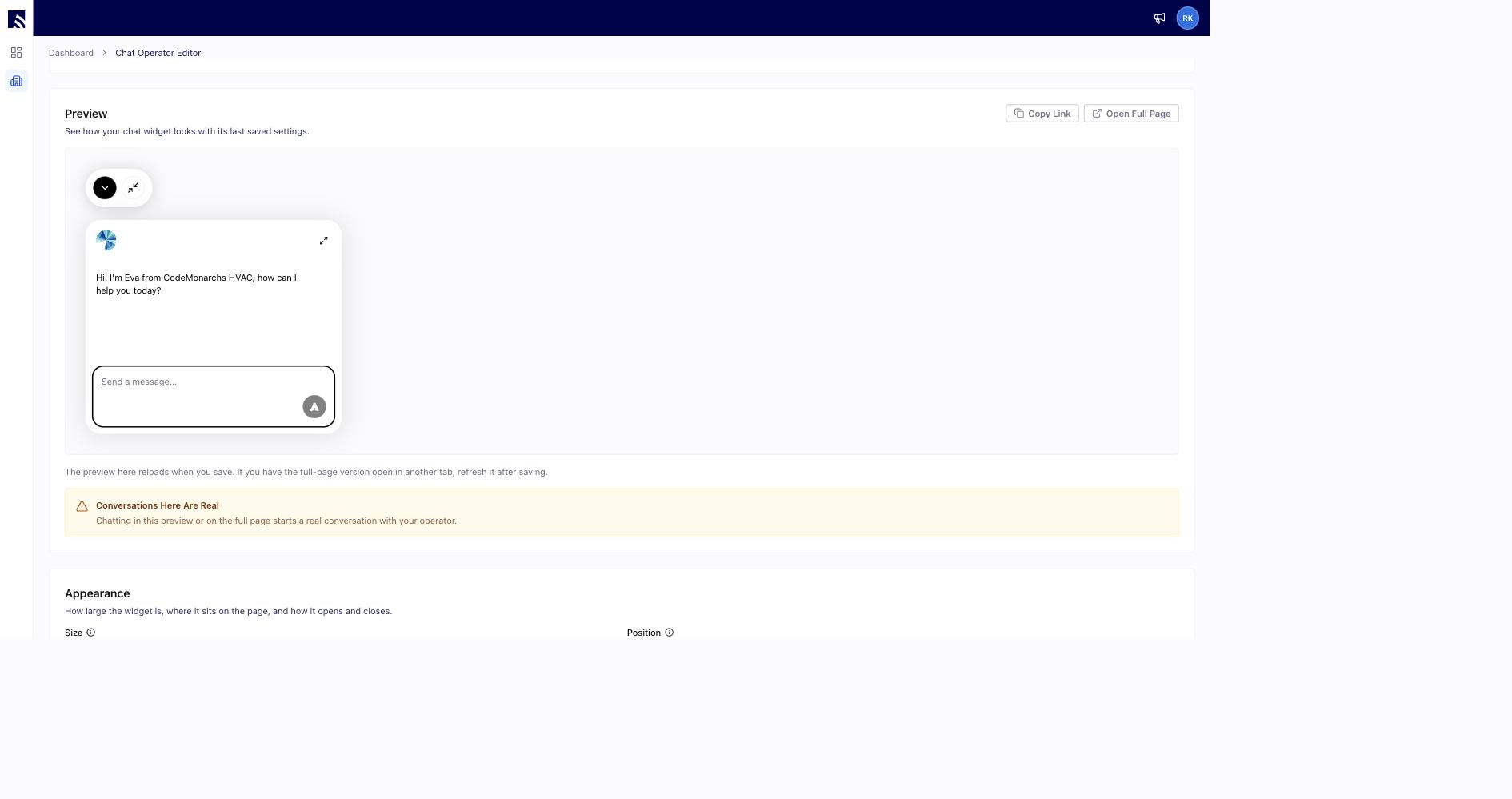 Conversations in the preview are real — chatting here starts an actual conversation with your operator.
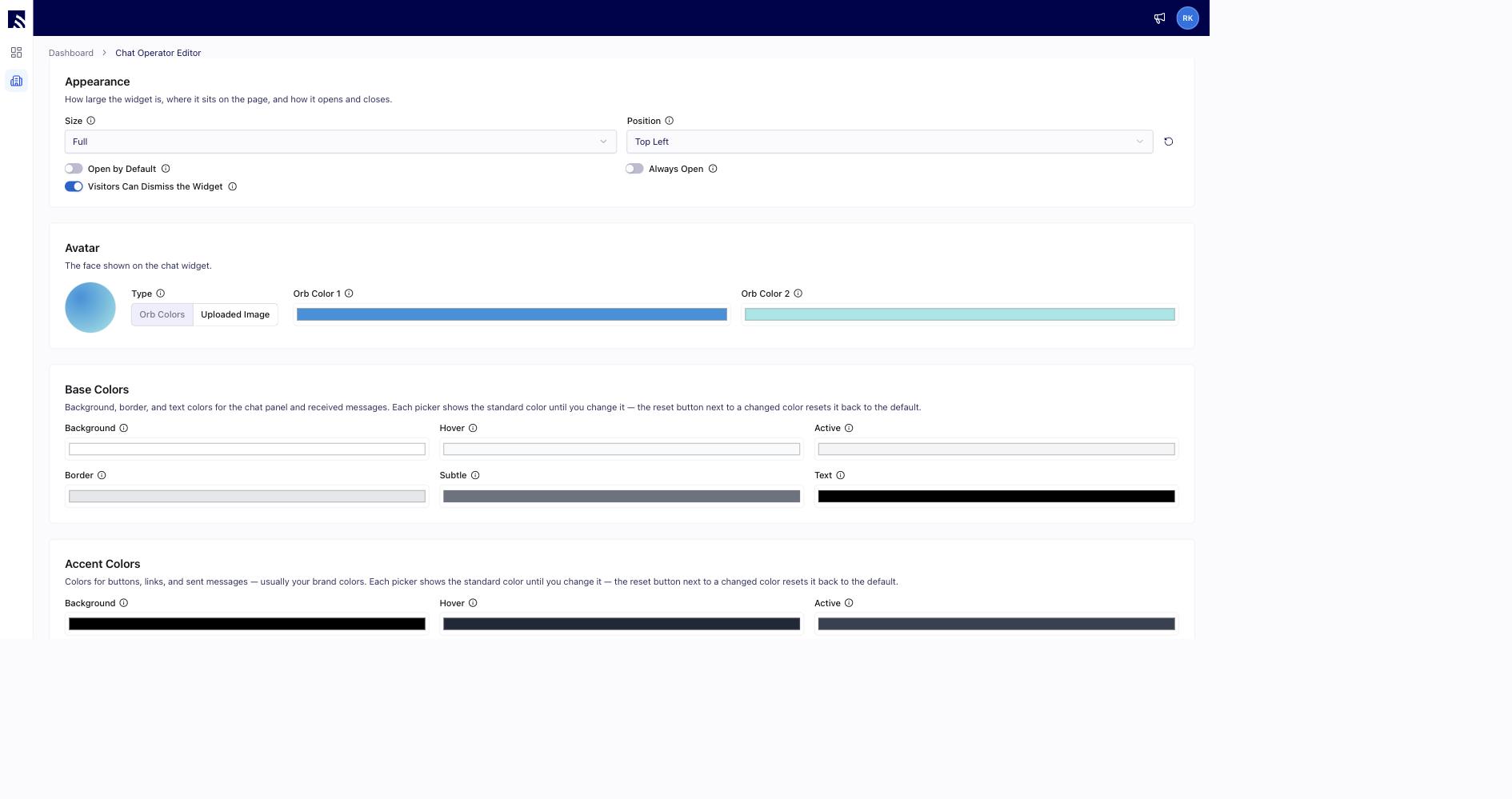
5. Style the widget to match your brand:
* **Appearance:** widget size, position on the page, whether it opens by default, stays open, and whether visitors can dismiss it.
* **Avatar:** an orb in your two chosen colors, or an uploaded image such as your logo.
* **Base, Accent & Error Colors:** panel, message, button, and link colors — usually your brand colors. Every picker has a reset back to the default.
* **Layout:** corner rounding and spacing.
Conversations in the preview are real — chatting here starts an actual conversation with your operator.
5. Style the widget to match your brand:
* **Appearance:** widget size, position on the page, whether it opens by default, stays open, and whether visitors can dismiss it.
* **Avatar:** an orb in your two chosen colors, or an uploaded image such as your logo.
* **Base, Accent & Error Colors:** panel, message, button, and link colors — usually your brand colors. Every picker has a reset back to the default.
* **Layout:** corner rounding and spacing.
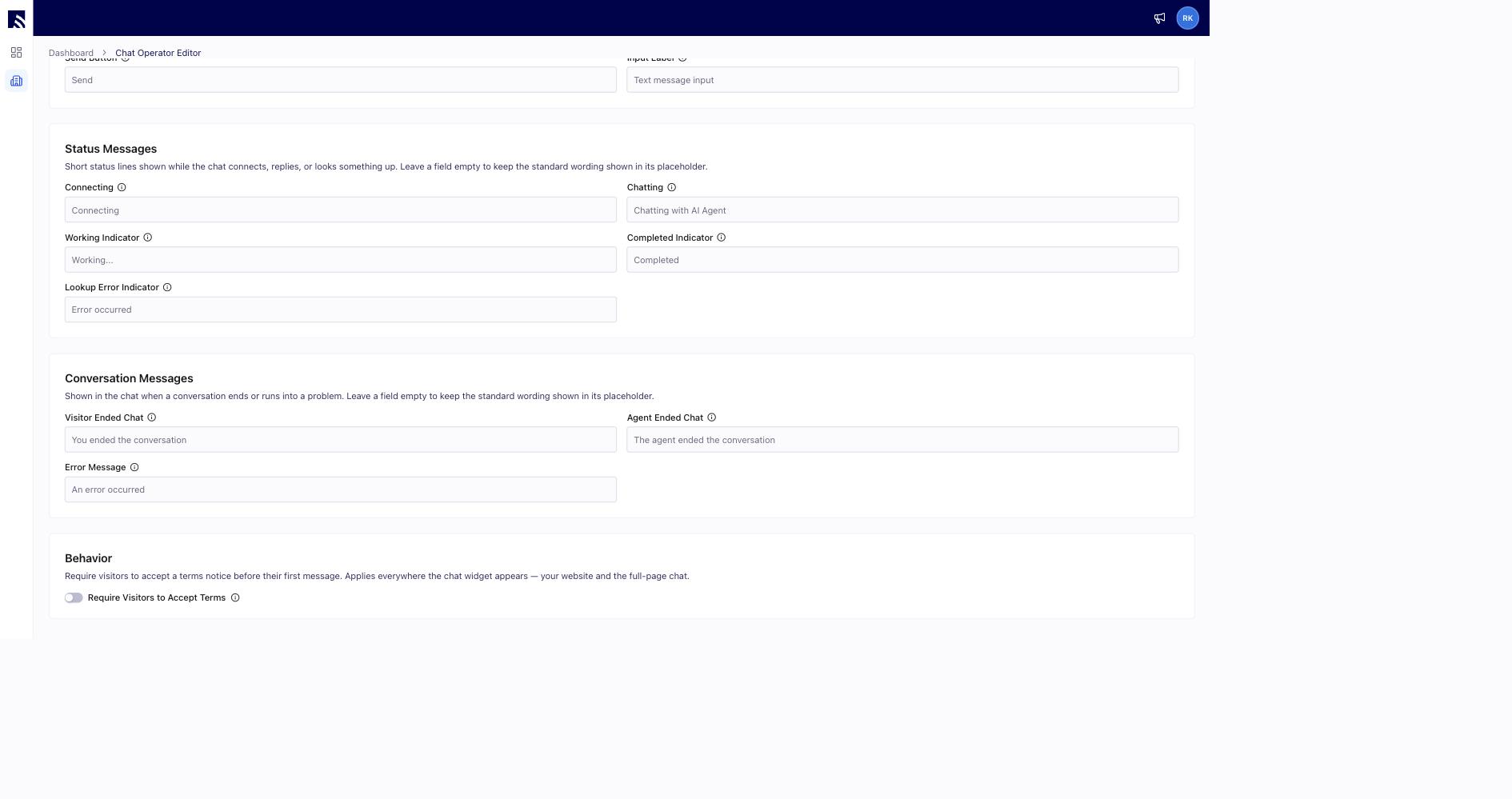
 6. Edit any customer-facing text in the widget — the collapsed widget label, the message-box placeholder, the "Connecting…" status, and what shows when a chat ends — under **Launcher & Panel Text**, **Message Input Text**, **Status Messages**, and **Conversation Messages**. Leave any field empty to keep the standard wording.
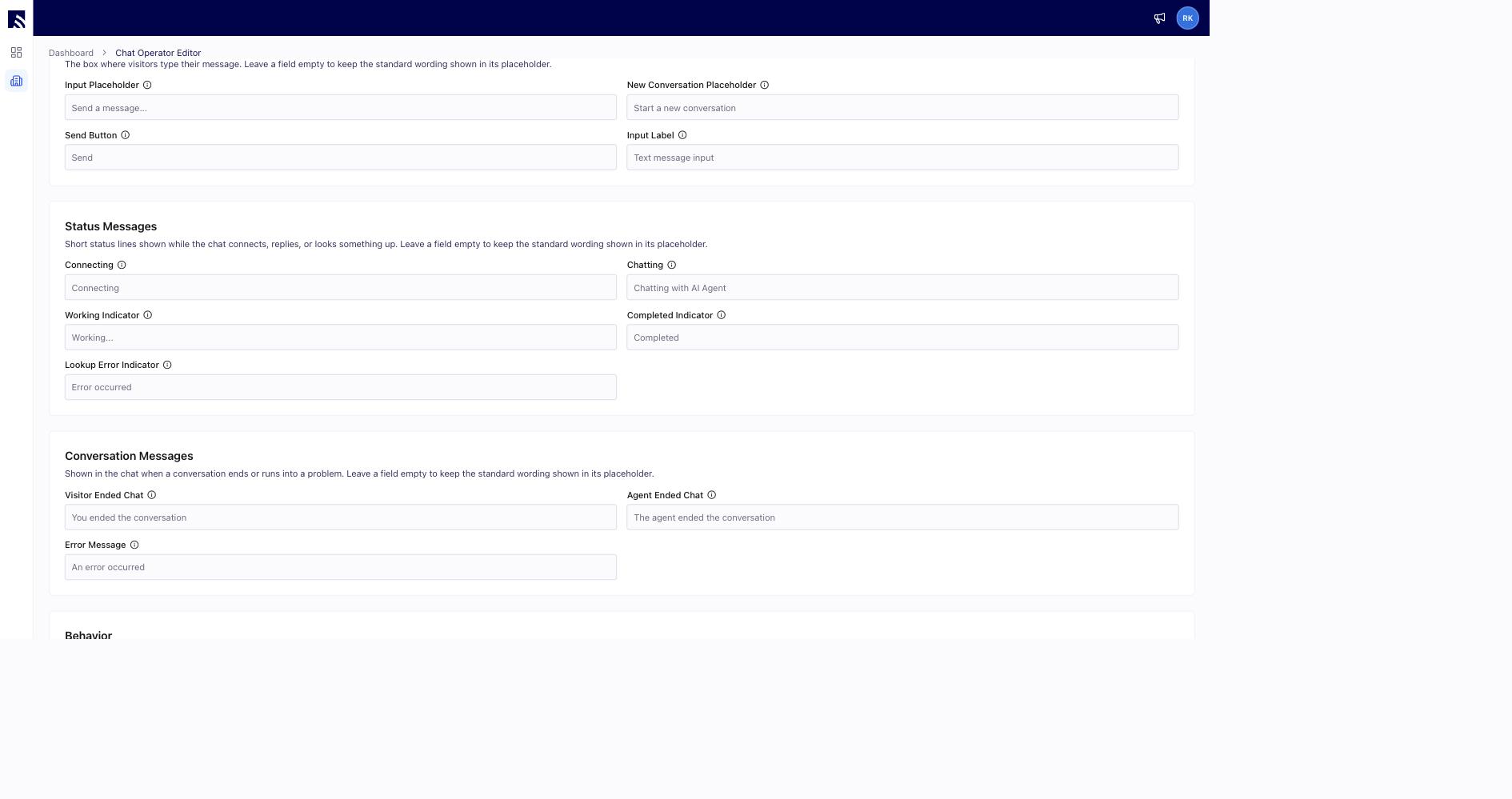 7. Under **Behavior**, optionally require visitors to accept a terms notice before their first message. The notice applies everywhere the widget appears — your website and the full-page chat — and each visitor accepts once per browser.
 ## Getting Chat AI on your website
The FieldPulse team supports you in getting Chat AI onto your website. The install details live in the **Install** tab on your chat operator, with two ways to put your operator in front of customers:
* **Install on your website:** a small snippet you paste into your site's HTML, ideally directly before the closing `` tag. The chat widget shows up in the bottom corner once the page loads. It's a one-time install — changes you make in the editor afterward apply automatically.
* **Share a direct link:** a hosted, full-page version of the chat — no website embed required. Drop it into SMS, email, or a QR code. It's also the easiest way to test your operator before it goes on your website.
## Getting Chat AI on your website
The FieldPulse team supports you in getting Chat AI onto your website. The install details live in the **Install** tab on your chat operator, with two ways to put your operator in front of customers:
* **Install on your website:** a small snippet you paste into your site's HTML, ideally directly before the closing `` tag. The chat widget shows up in the bottom corner once the page loads. It's a one-time install — changes you make in the editor afterward apply automatically.
* **Share a direct link:** a hosted, full-page version of the chat — no website embed required. Drop it into SMS, email, or a QR code. It's also the easiest way to test your operator before it goes on your website.