> ## Documentation Index
> Fetch the complete documentation index at: https://help.fieldpulse.com/llms.txt
> Use this file to discover all available pages before exploring further.
# Mobile App Overview: Admins and Team Managers
> See what Administrators and Team Managers can run from the FieldPulse mobile app — schedule, work, customers, sales, and timesheets across the whole team.
> **Who uses this:** Admins and Team Managers — the roles with visibility across the whole team's work. **Availability:** FieldPulse mobile app for iPhone, iPad, and Android phones and tablets; available in English and Spanish.
If you're an Administrator or Team Manager, the [FieldPulse mobile app](https://www.fieldpulse.com/features/mobile-app) gives you the whole operation in your pocket — your team's schedule, jobs and projects, the [customer list](https://www.fieldpulse.com/features/customer-management), sales records, and timesheets — so you can run the day from the field the same way you would from a desk.
## Overview
This page covers the **Administrator** and **Team Manager** view of the FieldPulse mobile app — the roles that manage teams and need visibility across everyone's work. Compared with the other mobile roles, this is the widest view of the app:
* **Administrators and Team Managers** see the whole team's schedule, work, and timesheets, and can create records across the board. This page covers that view.
* **Service Agents** see a scoped version of the same tabs — mostly their own assigned jobs and customers, shaped by the permissions you set. See [Service Agent Mobile App Overview](/getting-started/mobile-app/service-agents).
* **Limited Agents** get the most restricted view — their own schedule, assigned jobs, and timesheets, with no ability to change job status. See [Limited Agent Mobile App Overview](/getting-started/mobile-app/limited-agents).
For the full definition of each role and the permissions behind it, see [User Roles and Permissions Details](/settings/users-teams/user-roles).
## Video walkthrough
For a guided tour of everything below, watch the [mobile app video tour](https://www.loom.com/share/a9b907238fe24cdda11a7ff4ebdd7c5a).
## How it works
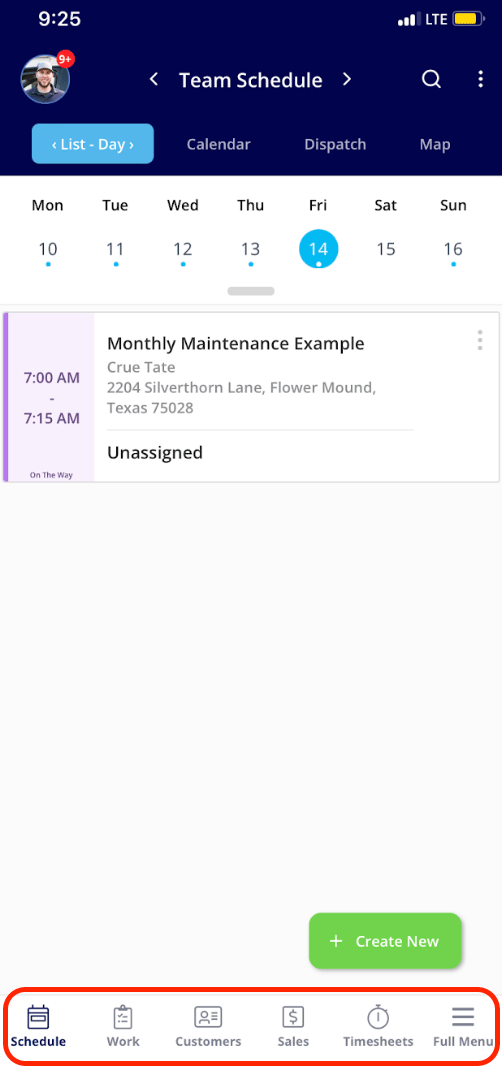
When you first open the FieldPulse mobile app, you land on the schedule and the jobs for the day — a natural starting point for getting the team ready. The menu at the bottom of the screen moves you between the five main areas:
| **Tab** | **What it holds** |
| - | - |
| **Schedule** | The schedules for both you and your team |
| **Work** | Projects, jobs, subtasks, and maintenance agreements |
| **Customers** | The company's full customer list |
| **Sales** | Estimates, invoices, payments, purchase orders, variant proposals, dynamic proposals (add-on), pricebooks (add-on), and the item list |
| **Timesheets** | General and job-tracking timesheets |
Select **Full Menu** on the far right of the bottom menu to reach these categories as well.
 ### Dashboard
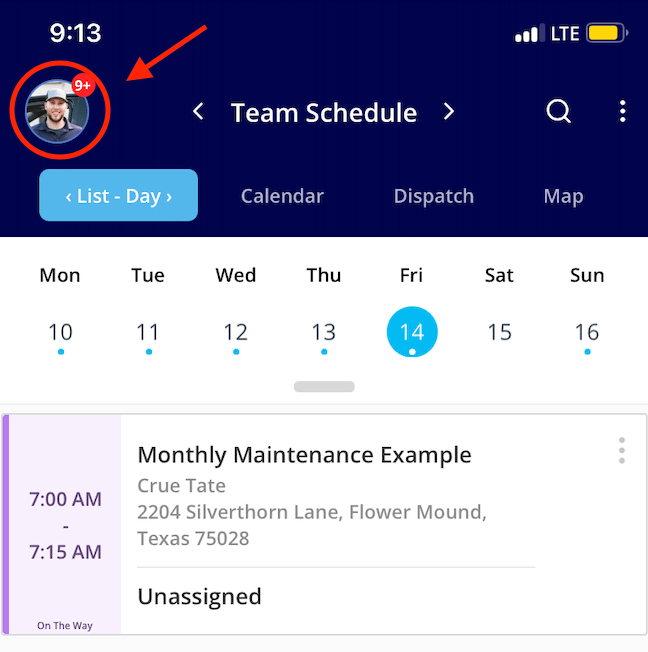
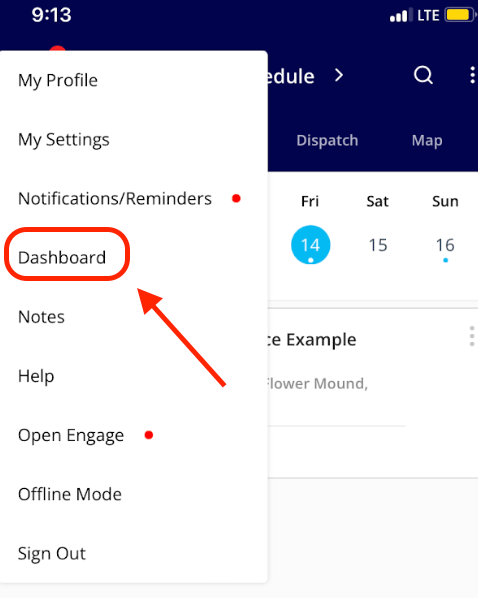
To open the dashboard, tap your photo or the bubble with your initials in the top left corner of the screen, then select **Dashboard** from the menu that appears.
### Dashboard
To open the dashboard, tap your photo or the bubble with your initials in the top left corner of the screen, then select **Dashboard** from the menu that appears.
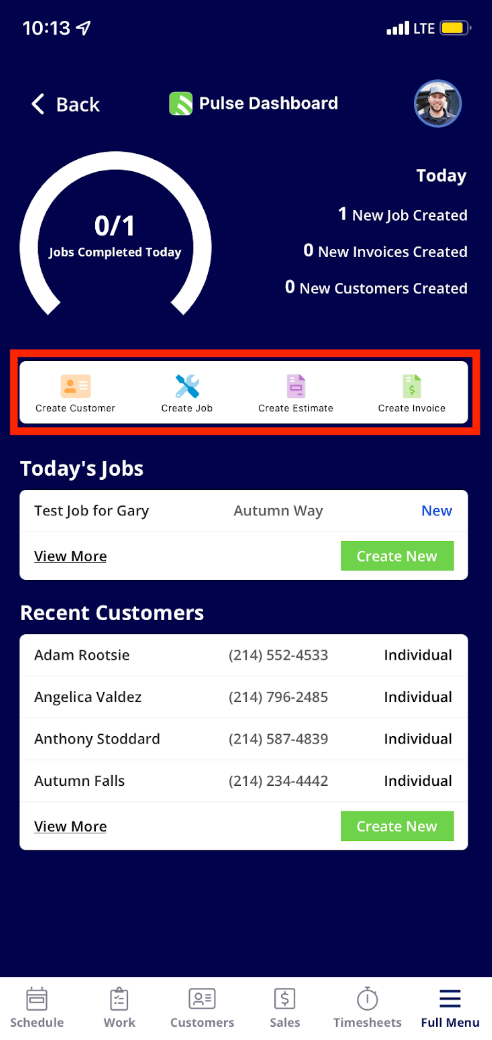
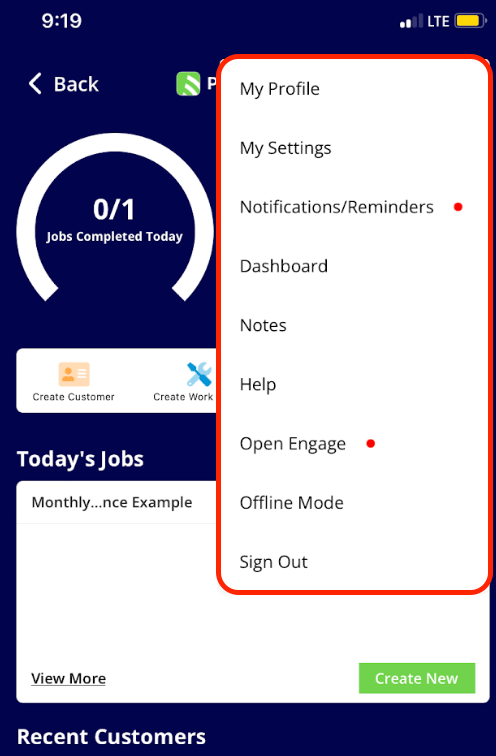
 The bar in the middle of the dashboard creates a customer, job, estimate, or invoice in a tap. **Today's Jobs** shows jobs assigned to both you and your team — select **Create New** to add one. **Recent Customers** shows your recent customer list, where you can also create a new customer.
 Tap the photo or initials in the top right corner of the dashboard to open a dropdown menu with **My Profile**, **My Settings**, **Notifications/Reminders**, **Dashboard**, **Notes**, **Help**, **Open Engage**, **Offline Mode**, and **Sign Out**.
 ### Schedule
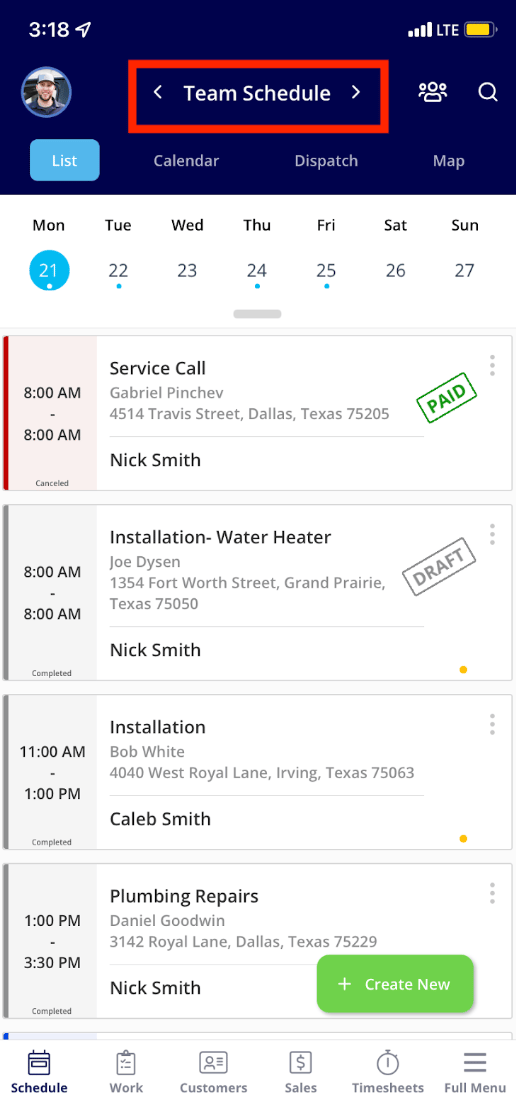
The **Schedule** tab opens on the **Team Schedule**, showing every job scheduled for the day across the team. Tap the arrow next to **Team Schedule** to switch to **My Schedule** and see only your own jobs. You can view the schedule as a **List**, **Calendar**, **Dispatch**, or **Map**.
### Schedule
The **Schedule** tab opens on the **Team Schedule**, showing every job scheduled for the day across the team. Tap the arrow next to **Team Schedule** to switch to **My Schedule** and see only your own jobs. You can view the schedule as a **List**, **Calendar**, **Dispatch**, or **Map**.
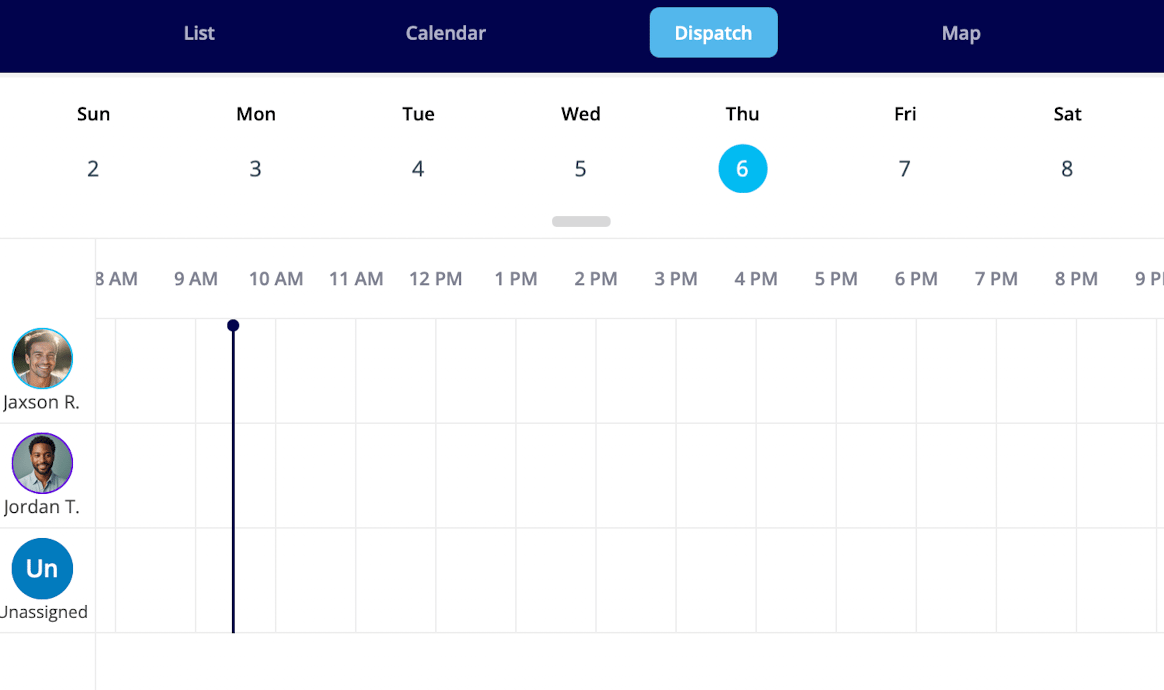
 A vertical line marks the current time across the **Dispatch** and **Calendar** views, so you always have a real-time anchor no matter how far you scroll. In the **Dispatch** view, horizontal lines separate each team member's row, so you can confirm which row a job belongs to before assigning it — especially useful on accounts with many team members listed close together.
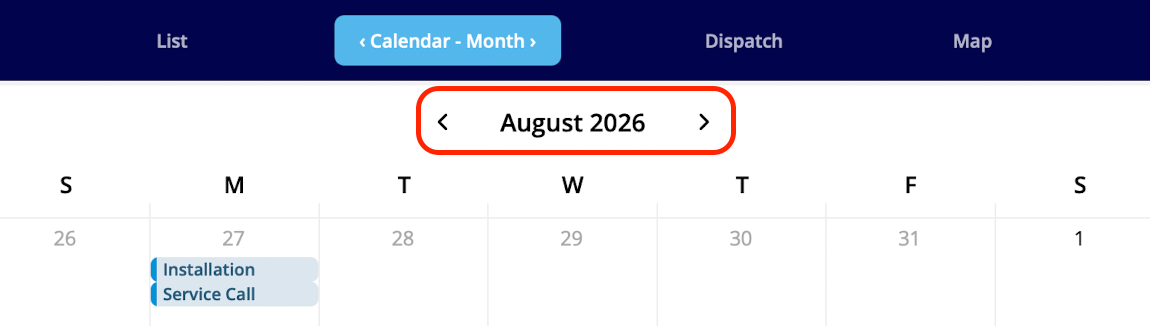
 Use the month picker to jump directly to any month and year instead of paging through one month at a time. Tap the month and year shown at the top of the schedule, then select the year and month you want to view.
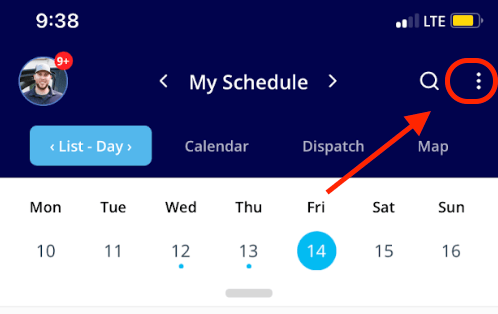
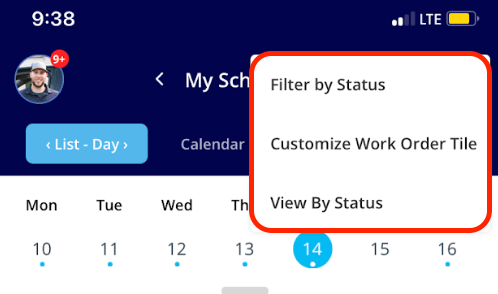
 To filter your jobs by status, customize your work order tile, or view jobs by a specific status, tap the three dots in the upper right corner of the screen. The **Status** filter and the **Team Member** filter both include a search bar at the top, so on an account with a large team or a long list of custom statuses you can start typing to reach the one you want instead of scrolling.
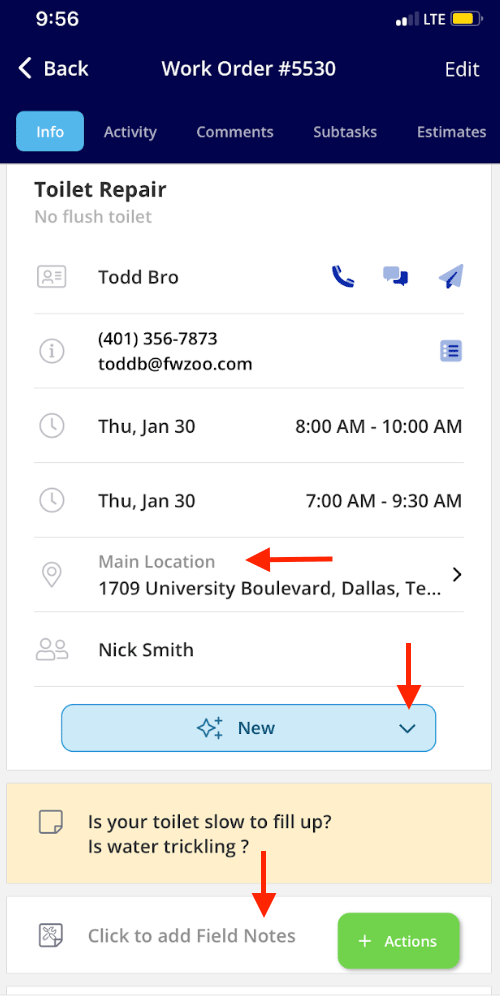
 Tap any job on the schedule to open the full job record — customer details, status changes, navigation to the job location, and notes.
 ### Work
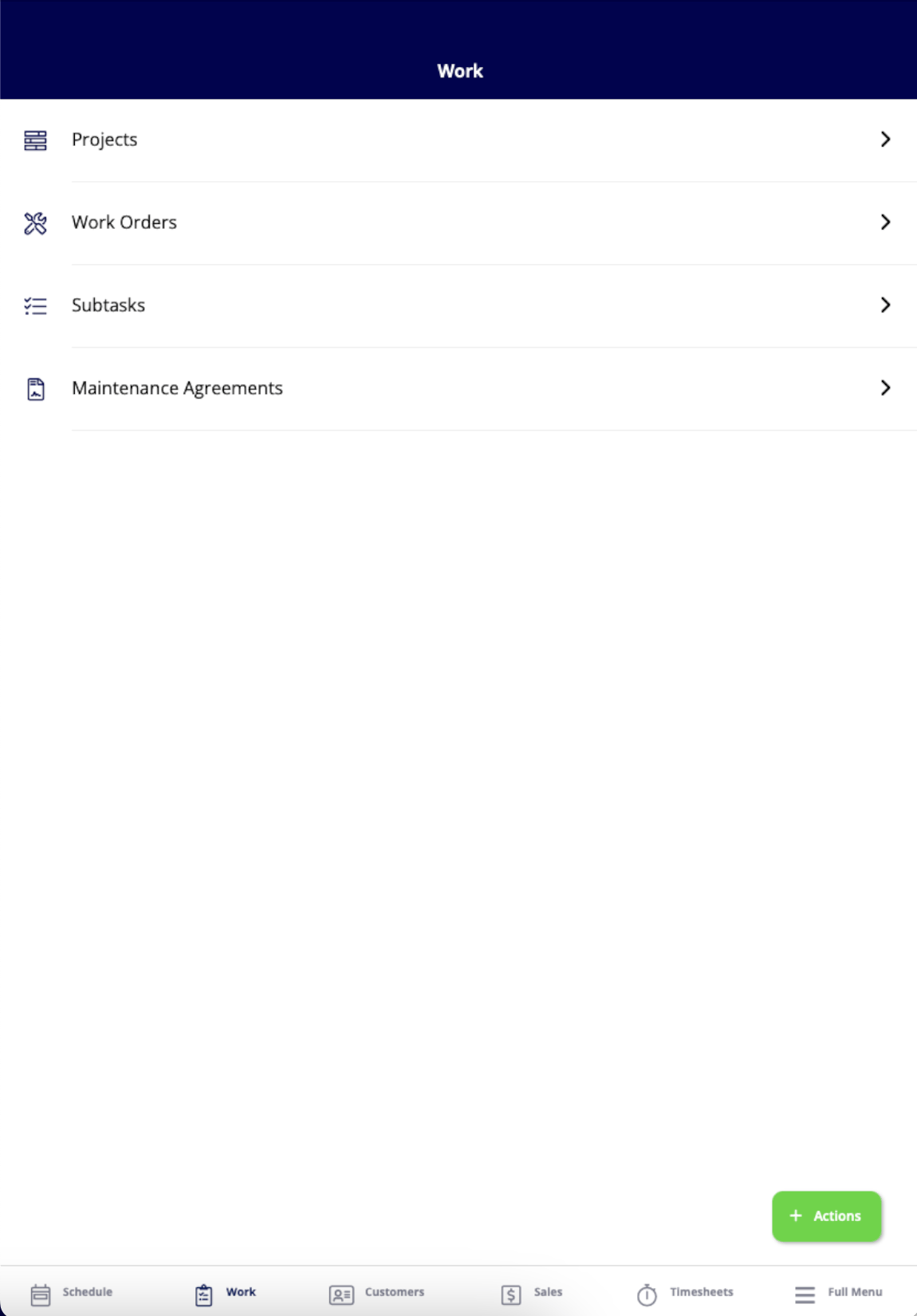
The **Work** tab is where you view and create projects, jobs, subtasks, and maintenance agreements.
### Work
The **Work** tab is where you view and create projects, jobs, subtasks, and maintenance agreements.
 ### Customers
The **Customers** tab opens on **All Customers**, which you can filter by status, tags, or pipeline at the top of the screen.
### Customers
The **Customers** tab opens on **All Customers**, which you can filter by status, tags, or pipeline at the top of the screen.
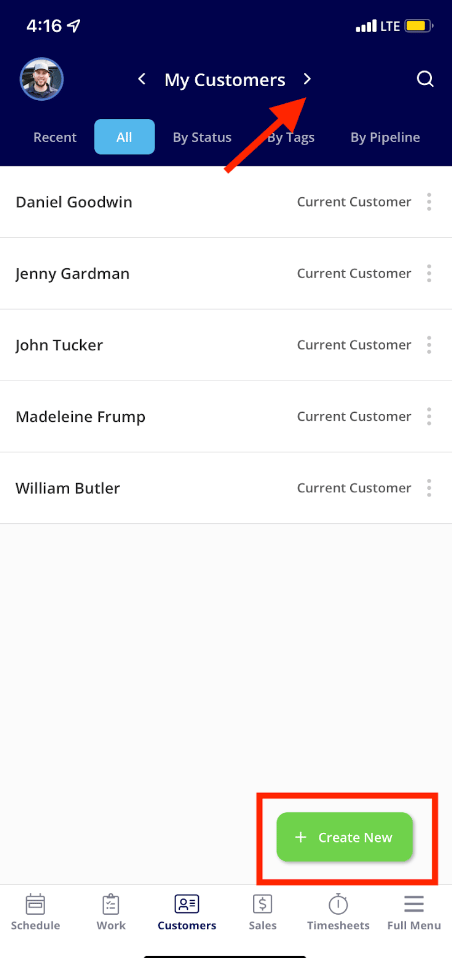
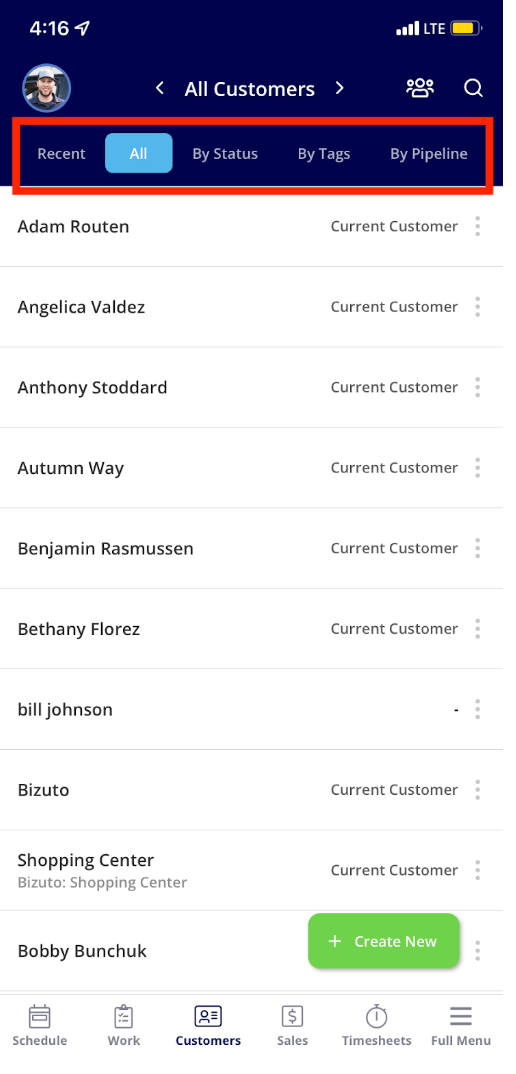 To see only your customers, tap the arrow next to **All Customers**. You can also create a new customer from the **Create New** button in the bottom right corner.
 ### Sales
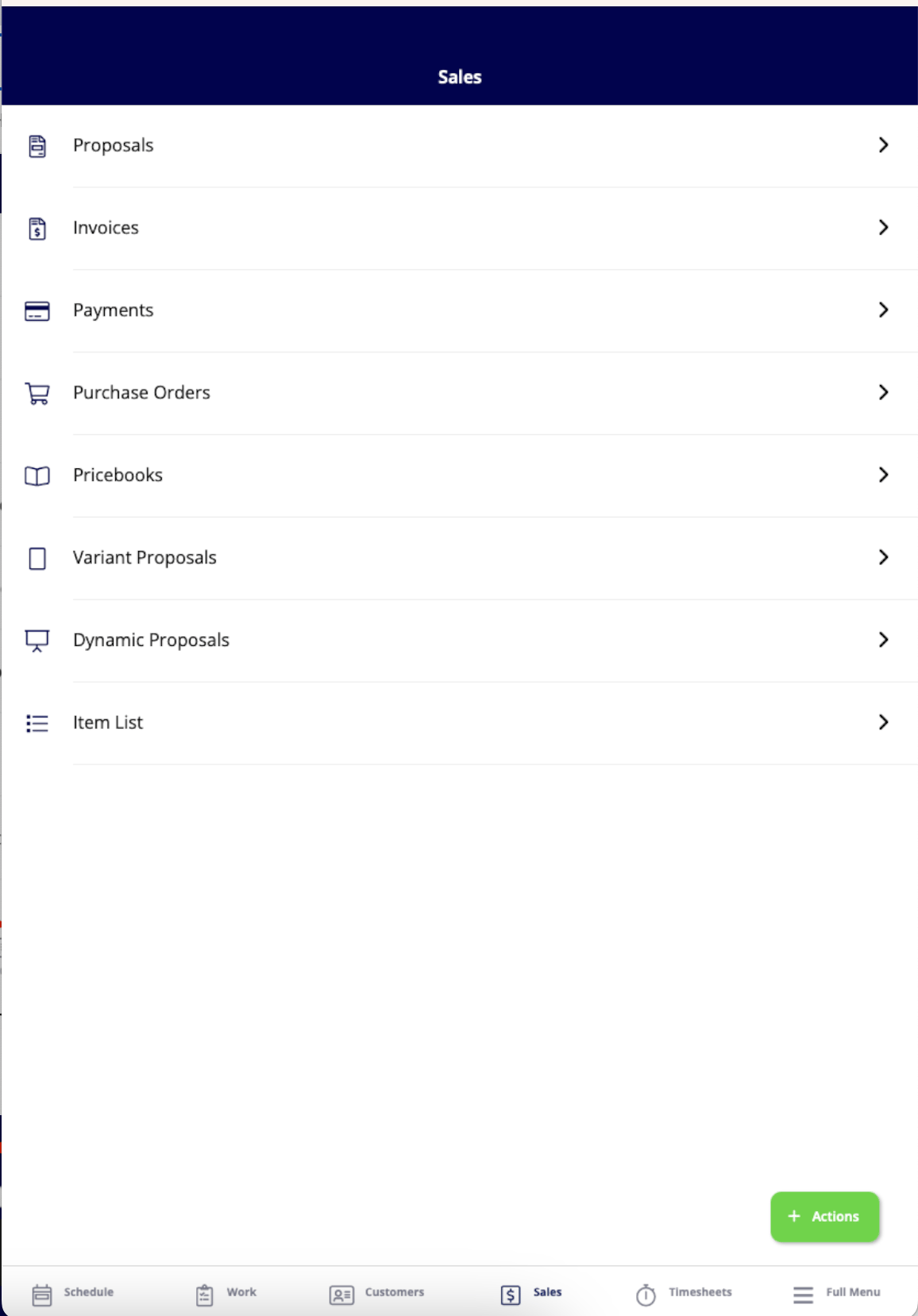
The **Sales** tab is where you create estimates, invoices, payments, purchase orders, and variant proposals, use dynamic proposals (add-on), find your pricebook (add-on), and search your item list.
### Sales
The **Sales** tab is where you create estimates, invoices, payments, purchase orders, and variant proposals, use dynamic proposals (add-on), find your pricebook (add-on), and search your item list.
 ### Timesheets
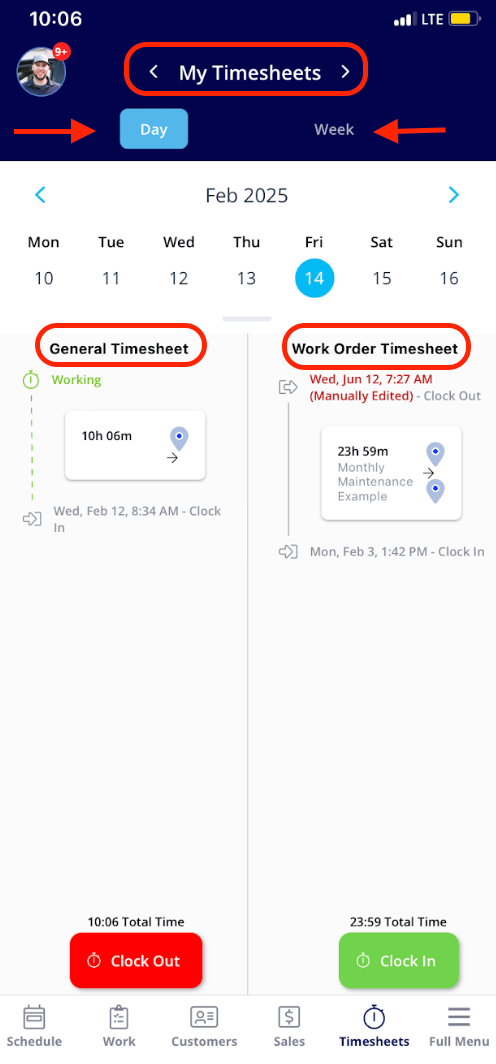
The **Timesheets** tab is where you clock in and out using the **General Timesheet** and the **Work Order Timesheet**, and where you view your team's hours for the day or week. Select **Day** or **Week** if you need to view or edit an entry. To see team timesheets, tap the arrow next to **My Timesheets** — you can view your team's daily or weekly entries, or select a specific time frame to review.
### Timesheets
The **Timesheets** tab is where you clock in and out using the **General Timesheet** and the **Work Order Timesheet**, and where you view your team's hours for the day or week. Select **Day** or **Week** if you need to view or edit an entry. To see team timesheets, tap the arrow next to **My Timesheets** — you can view your team's daily or weekly entries, or select a specific time frame to review.
 ## Availability
The FieldPulse mobile app runs on iPhone and iPad — download **FieldPulse** from the Apple App Store — and on Android phones and tablets, downloaded from the Google Play Store. Log in with your FieldPulse credentials. Team members can operate on different device types and use multiple devices: iPhone/iPad, Android phone/tablet, and web app users can all be on the same team.
The mobile app is available in English and Spanish. To use it in Spanish, ask FieldPulse Support to turn on Spanish for each user who needs it. Once Support turns it on, the user doesn't need to set anything up.
## FAQs
**Is the mobile app available in languages other than English?**
Yes. The mobile app is available in English and Spanish. To use it in Spanish, ask FieldPulse Support to turn on Spanish for each user who needs it. Once Support turns it on, the user doesn't need to set anything up.
**How do I reset the default maps app that job address links open?**
Log out of the FieldPulse app, then log back in and tap the hyperlink for a job address — you will be prompted to choose between Apple Maps and Google Maps. The option you choose becomes your new default maps app. To switch to a different maps app later, log out of FieldPulse and repeat the process.
## Related articles
* [Service Agent Mobile App Overview](/getting-started/mobile-app/service-agents)
* [Limited Agent Mobile App Overview](/getting-started/mobile-app/limited-agents)
* [User Roles and Permissions Details](/settings/users-teams/user-roles)
## Related topics
- [Mobile App Basics](/getting-started/mobile-app/index.md)
- [Limited Agent Mobile App Overview](/getting-started/mobile-app/limited-agents.md)
- [Service Agent Mobile App Overview](/getting-started/mobile-app/service-agents.md)
- [Welcome to FieldPulse](/getting-started/welcome/overview.md)
This documentation is built and hosted on [Mintlify](https://mintlify.com), a developer documentation platform.
## Availability
The FieldPulse mobile app runs on iPhone and iPad — download **FieldPulse** from the Apple App Store — and on Android phones and tablets, downloaded from the Google Play Store. Log in with your FieldPulse credentials. Team members can operate on different device types and use multiple devices: iPhone/iPad, Android phone/tablet, and web app users can all be on the same team.
The mobile app is available in English and Spanish. To use it in Spanish, ask FieldPulse Support to turn on Spanish for each user who needs it. Once Support turns it on, the user doesn't need to set anything up.
## FAQs
**Is the mobile app available in languages other than English?**
Yes. The mobile app is available in English and Spanish. To use it in Spanish, ask FieldPulse Support to turn on Spanish for each user who needs it. Once Support turns it on, the user doesn't need to set anything up.
**How do I reset the default maps app that job address links open?**
Log out of the FieldPulse app, then log back in and tap the hyperlink for a job address — you will be prompted to choose between Apple Maps and Google Maps. The option you choose becomes your new default maps app. To switch to a different maps app later, log out of FieldPulse and repeat the process.
## Related articles
* [Service Agent Mobile App Overview](/getting-started/mobile-app/service-agents)
* [Limited Agent Mobile App Overview](/getting-started/mobile-app/limited-agents)
* [User Roles and Permissions Details](/settings/users-teams/user-roles)
## Related topics
- [Mobile App Basics](/getting-started/mobile-app/index.md)
- [Limited Agent Mobile App Overview](/getting-started/mobile-app/limited-agents.md)
- [Service Agent Mobile App Overview](/getting-started/mobile-app/service-agents.md)
- [Welcome to FieldPulse](/getting-started/welcome/overview.md)
This documentation is built and hosted on [Mintlify](https://mintlify.com), a developer documentation platform.