> ## Documentation Index
> Fetch the complete documentation index at: https://help.fieldpulse.com/llms.txt
> Use this file to discover all available pages before exploring further.
# How to Sync Purchase Orders With QuickBooks Desktop
> Push new and updated FieldPulse purchase orders one way into QuickBooks Desktop, with the full field mapping and how PO statuses map to Open and Closed.
> **Who uses this:** An admin turns on PO sync with FieldPulse; POs then push automatically. **Availability:** Requires QuickBooks Desktop + the sync connector.
[Purchase order](/inventory-materials/purchase-orders/managing) sync pushes your FieldPulse purchase orders one way into QuickBooks Desktop, so POs land in your books without re-entry. Once it's enabled, every newly created or updated purchase order pushes to QuickBooks Desktop on its own — this is a one-way sync from FieldPulse to QuickBooks, not two-way.
## Overview
Purchase order sync is separate from the main QuickBooks Desktop sync and has to be turned on by FieldPulse. It saves you from re-keying POs: a supplier order raised in FieldPulse otherwise gets typed again into QuickBooks, and the two fall out of step. With PO sync on, the purchase order and its line items flow straight into QuickBooks Desktop. Because it's one way, edits made in QuickBooks Desktop do not flow back to FieldPulse. FieldPulse integrates with **QuickBooks Desktop 2024 and newer**.
## Before you begin
* The main QuickBooks Desktop sync should be connected and running — see [How to Sync With QuickBooks Desktop](/integrations/accounting/quickbooks-desktop/sync).
* Purchase order sync is enabled by request. Contact the FieldPulse support team through in-app chat or at [support@fieldpulse.com](mailto:support@fieldpulse.com) to turn it on.
## Turn on purchase order sync
1. [Contact the FieldPulse support team](https://www.fieldpulse.com/company/contact-us) through **in-app chat** or at **[support@fieldpulse.com](mailto:support@fieldpulse.com)** to initiate your purchase order sync.
2. Once it's enabled, no further action is needed — the sync triggers automatically whenever you **create** or **update** a purchase order, pushing it to QuickBooks Desktop.
## Purchase order field mapping
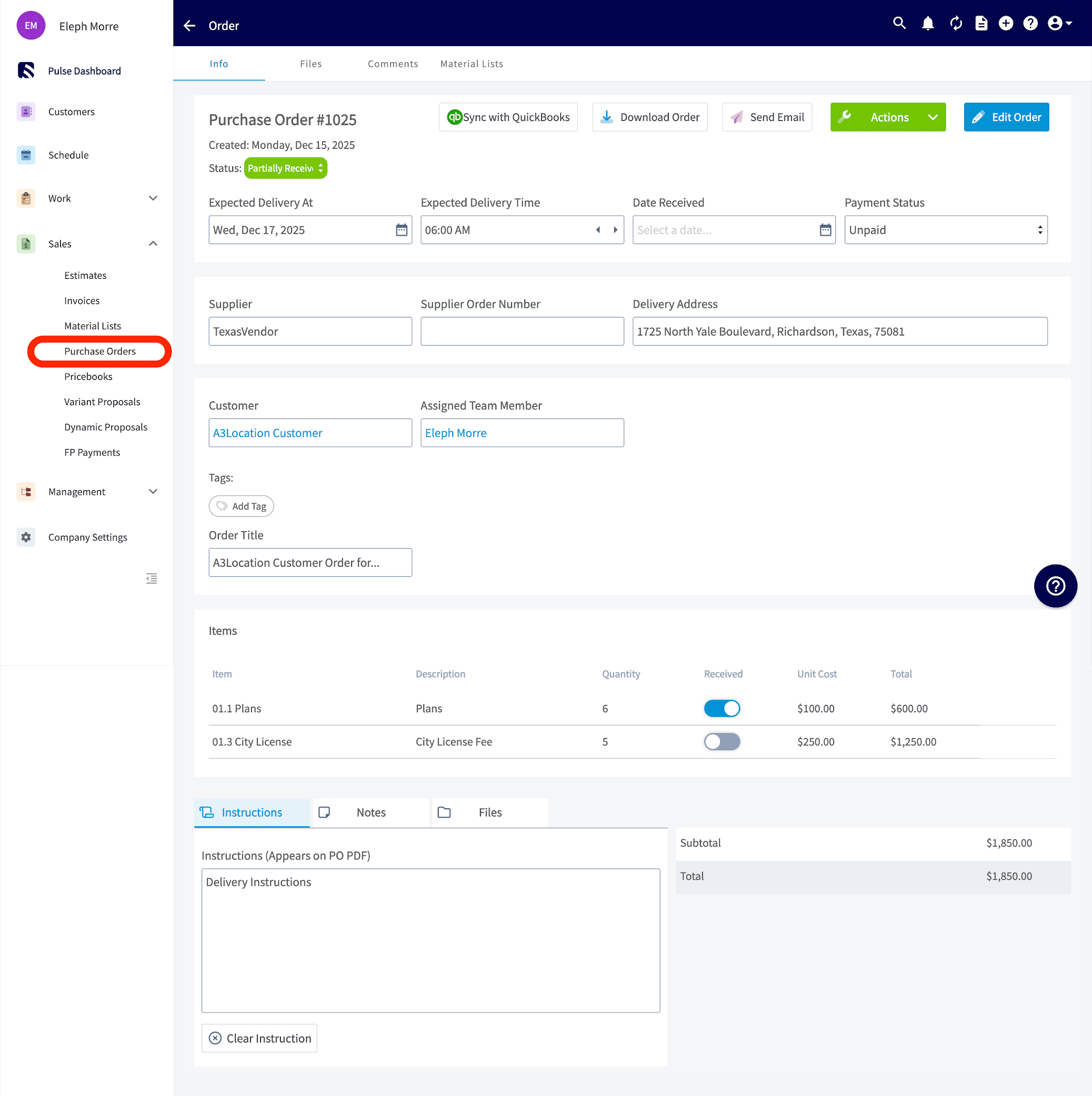
These FieldPulse purchase order fields sync to QuickBooks Desktop and appear in the QuickBooks field shown. **Any field not listed here does not sync.**
| **FieldPulse field** | **QuickBooks Desktop field** |
| - | - |
| Purchase Order Number | Purchase Order Number |
| Supplier Name | Vendor |
| Supplier Email | Vendor Email (not shown on the purchase order) |
| Expected Delivery Date | Date |
| Address | Shipping Address |
| Line Item Title | Product / Service |
| Description | Description |
| Quantity | Quantity |
| Unit Cost | Rate |
| Total (per line item) | Amount |
| Created At Date | Created Date in Summary |
| Updated At Date | Last Edited Time |
| Order Title | Your Message to Vendor |
| Instructions | Memo |
| Total | Total |
## How PO statuses map
Each FieldPulse purchase order status reflects as either **Open** or **Closed** in QuickBooks Desktop.
| **FieldPulse status** | **QuickBooks Desktop status** |
| - | - |
| Compose | Open |
| Draft | Open |
| Ordered | Open |
| Pending | Open |
| En Route | Open |
| Ready for Pickup | Open |
| Partially Received | Open |
| Issue | Open |
| Received | Closed |
| Completed | Closed |
| Canceled | Closed |
## Example: a purchase order before and after syncing
Purchase Order in FieldPulse:
 How this syncs over to QuickBooks Desktop:
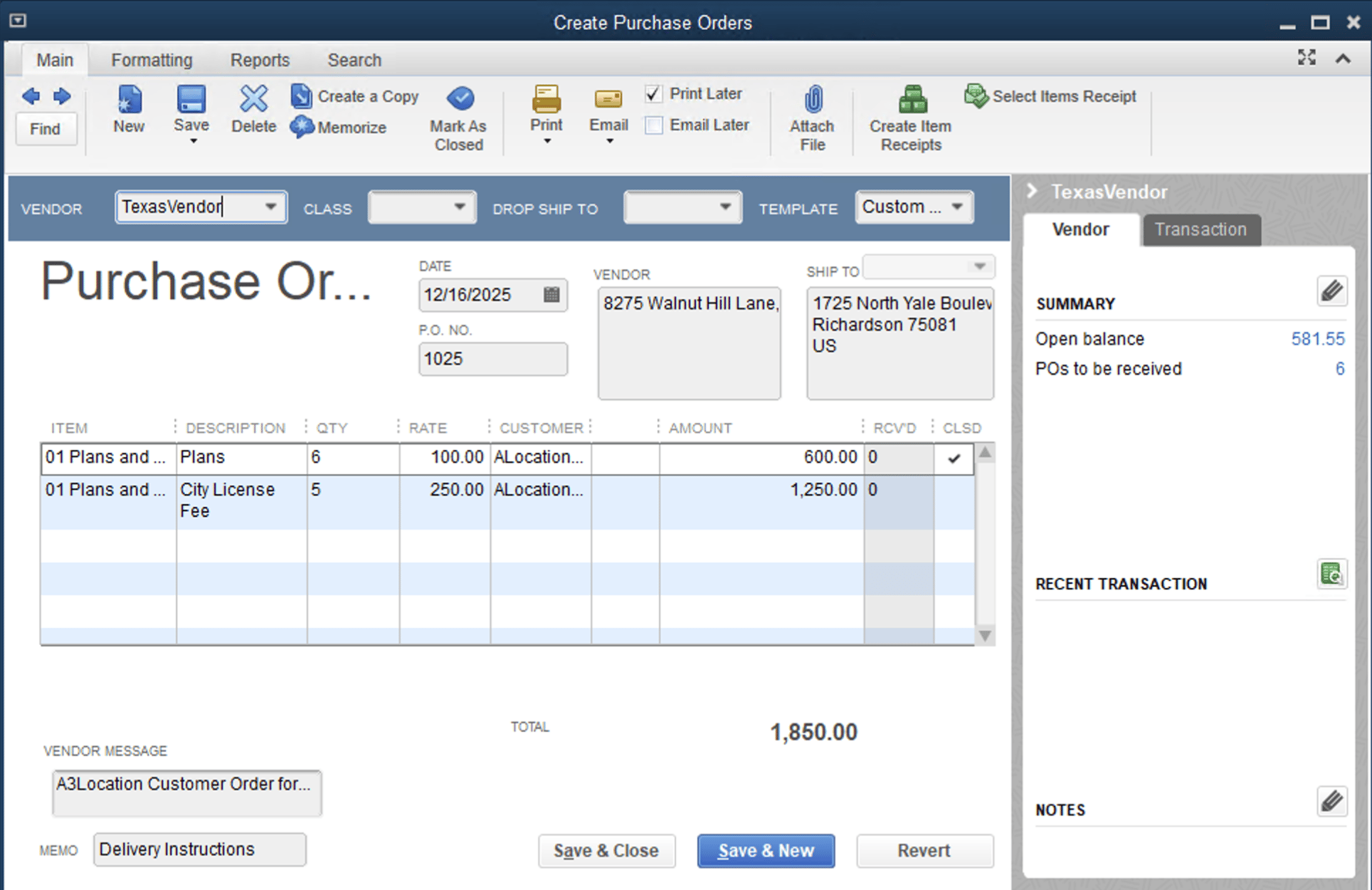 Purchase order sync is working when a PO you create or update in FieldPulse appears in QuickBooks Desktop with the mapped fields above — no re-entry, no second copy to keep in step.
## Related articles
* [QuickBooks Desktop Overview](/integrations/accounting/quickbooks-desktop/overview)
* [How to Sync With QuickBooks Desktop](/integrations/accounting/quickbooks-desktop/sync)
* [QuickBooks Desktop Sync Examples and Details](/integrations/accounting/quickbooks-desktop/sync-examples)
* [Troubleshooting QuickBooks Desktop Sync Errors](/integrations/accounting/quickbooks-desktop/sync-errors)
## Related topics
- [QuickBooks Desktop Overview](/integrations/accounting/quickbooks-desktop/overview.md)
- [QuickBooks Desktop](/integrations/accounting/quickbooks-desktop/index.md)
- [QuickBooks Desktop Sync Examples and Details](/integrations/accounting/quickbooks-desktop/sync-examples.md)
- [Setting Up QuickBooks Desktop Before Syncing](/integrations/accounting/quickbooks-desktop/pre-sync.md)
This documentation is built and hosted on [Mintlify](https://mintlify.com), a developer documentation platform.
Purchase order sync is working when a PO you create or update in FieldPulse appears in QuickBooks Desktop with the mapped fields above — no re-entry, no second copy to keep in step.
## Related articles
* [QuickBooks Desktop Overview](/integrations/accounting/quickbooks-desktop/overview)
* [How to Sync With QuickBooks Desktop](/integrations/accounting/quickbooks-desktop/sync)
* [QuickBooks Desktop Sync Examples and Details](/integrations/accounting/quickbooks-desktop/sync-examples)
* [Troubleshooting QuickBooks Desktop Sync Errors](/integrations/accounting/quickbooks-desktop/sync-errors)
## Related topics
- [QuickBooks Desktop Overview](/integrations/accounting/quickbooks-desktop/overview.md)
- [QuickBooks Desktop](/integrations/accounting/quickbooks-desktop/index.md)
- [QuickBooks Desktop Sync Examples and Details](/integrations/accounting/quickbooks-desktop/sync-examples.md)
- [Setting Up QuickBooks Desktop Before Syncing](/integrations/accounting/quickbooks-desktop/pre-sync.md)
This documentation is built and hosted on [Mintlify](https://mintlify.com), a developer documentation platform.