> ## Documentation Index
> Fetch the complete documentation index at: https://help.fieldpulse.com/llms.txt
> Use this file to discover all available pages before exploring further.
# Setting Up the HighLevel Integration
> Connect HighLevel for a two-way sync of customers and contacts between FieldPulse and HighLevel, so both platforms stay current without double entry.
> **Who uses this:** Admins can enable it. **Availability:** Requires a HighLevel account.
The [HighLevel integration](https://www.fieldpulse.com/company/partners/high-level) creates a two-way sync of customers and contacts between FieldPulse and HighLevel, so a record you add or update in one platform shows up current in the other without anyone entering it twice. HighLevel is an all-in-one marketing and sales platform (websites, funnels, forms, and follow-up campaigns); this [integration](https://www.fieldpulse.com/company/partners) keeps its contact list and your [FieldPulse customer](https://www.fieldpulse.com/features/customer-management) list in step.
## Overview
Once connected, the HighLevel integration syncs records both directions:
* **FieldPulse → HighLevel.** Customers in FieldPulse sync to HighLevel as Contacts.
* **HighLevel → FieldPulse.** Contacts in HighLevel sync to FieldPulse as Customers.
 ## Before you begin
* You need a **HighLevel account**. To [learn more about HighLevel](https://www.gohighlevel.com/), visit their site.
## Connect HighLevel
1. In FieldPulse, go to **Company Settings** > **Features & Plugins**.
2. Locate the **HighLevel** tile and select **Enable**.
## Before you begin
* You need a **HighLevel account**. To [learn more about HighLevel](https://www.gohighlevel.com/), visit their site.
## Connect HighLevel
1. In FieldPulse, go to **Company Settings** > **Features & Plugins**.
2. Locate the **HighLevel** tile and select **Enable**.
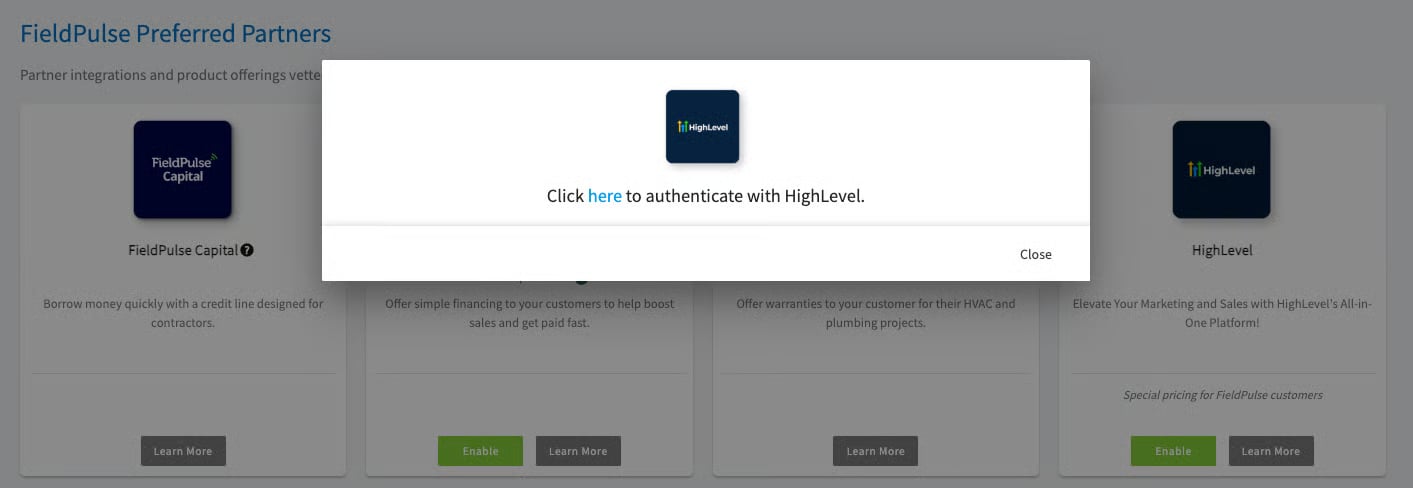 3. When prompted, log in to your **HighLevel account** to connect the two platforms.
Once your accounts are connected, customers and contacts begin syncing automatically in both directions.
## What syncs
The two-way sync includes these fields:
| **FieldPulse Customer fields** | **HighLevel Contact fields** |
| - | - |
| First Name, Last Name | First Name, Last Name |
| Email | Email address |
| Phone | Phone |
| Address Line 1, City, State, Postal Code | Address 1, City, State, Postal Code |
| Company Name | Company Name, Display Name |
| Website | — |
| Tags | Tags |
| — | Account Type, Status, Billing Address, Billing City, Billing State, Custom Fields |
Your setup is working when a customer you add in FieldPulse appears as a contact in HighLevel, and a contact added in HighLevel appears in your FieldPulse customer list.
## FAQs
**What causes a new customer to be created?**
FieldPulse only checks HighLevel contacts when something changes in HighLevel. A new customer is created when one of these happens to a contact that doesn't match an existing FieldPulse customer:
* The contact is added.
* The contact is edited.
* The contact's tags change.
**How do I avoid duplicate customers?**
Before you connect HighLevel, make sure each customer has the same email address in FieldPulse and in HighLevel. A contact with no email address, or a different one, won't match and will be added as a new customer. If duplicates already exist, see [How to Merge Duplicate Customers](/customers/managing-customers/merging-duplicates).
## Related articles
* [Customer Communications Overview](/customers/communications/overview)
* [How to Track Lead Sources](/customers/leads-pipeline/sources)
* [How to Merge Duplicate Customers](/customers/managing-customers/merging-duplicates)
## Related topics
- [Marketing & Lead Gen](/integrations/marketing/index.md)
- [ClearPath Overview](/jobs/workflows/clearpath/overview.md)
- [Xero Overview](/integrations/accounting/xero/overview.md)
- [Setting Up ClearPath Status Action Flows](/jobs/workflows/clearpath/status-action-flows.md)
This documentation is built and hosted on [Mintlify](https://mintlify.com), a developer documentation platform.
3. When prompted, log in to your **HighLevel account** to connect the two platforms.
Once your accounts are connected, customers and contacts begin syncing automatically in both directions.
## What syncs
The two-way sync includes these fields:
| **FieldPulse Customer fields** | **HighLevel Contact fields** |
| - | - |
| First Name, Last Name | First Name, Last Name |
| Email | Email address |
| Phone | Phone |
| Address Line 1, City, State, Postal Code | Address 1, City, State, Postal Code |
| Company Name | Company Name, Display Name |
| Website | — |
| Tags | Tags |
| — | Account Type, Status, Billing Address, Billing City, Billing State, Custom Fields |
Your setup is working when a customer you add in FieldPulse appears as a contact in HighLevel, and a contact added in HighLevel appears in your FieldPulse customer list.
## FAQs
**What causes a new customer to be created?**
FieldPulse only checks HighLevel contacts when something changes in HighLevel. A new customer is created when one of these happens to a contact that doesn't match an existing FieldPulse customer:
* The contact is added.
* The contact is edited.
* The contact's tags change.
**How do I avoid duplicate customers?**
Before you connect HighLevel, make sure each customer has the same email address in FieldPulse and in HighLevel. A contact with no email address, or a different one, won't match and will be added as a new customer. If duplicates already exist, see [How to Merge Duplicate Customers](/customers/managing-customers/merging-duplicates).
## Related articles
* [Customer Communications Overview](/customers/communications/overview)
* [How to Track Lead Sources](/customers/leads-pipeline/sources)
* [How to Merge Duplicate Customers](/customers/managing-customers/merging-duplicates)
## Related topics
- [Marketing & Lead Gen](/integrations/marketing/index.md)
- [ClearPath Overview](/jobs/workflows/clearpath/overview.md)
- [Xero Overview](/integrations/accounting/xero/overview.md)
- [Setting Up ClearPath Status Action Flows](/jobs/workflows/clearpath/status-action-flows.md)
This documentation is built and hosted on [Mintlify](https://mintlify.com), a developer documentation platform.