> ## Documentation Index
> Fetch the complete documentation index at: https://help.fieldpulse.com/llms.txt
> Use this file to discover all available pages before exploring further.
# How to Import Reporting Templates
> Download a pre-built FieldPulse report template, from jobs by status to sales tax, and import it into Raw Data Reporting in a few clicks.
> **Who uses this:** Admins have full reporting access, and Team Managers can be given it. Service Agents and Limited Agents do not have reporting access. **Availability:** All regions · FieldPulse web app.
Building the same "jobs by status" report from scratch on every account is wasted effort. FieldPulse offers a library of pre-built report templates for the things most businesses track — job status, estimate conversion, sales, tax, overdue invoices, commissions, payments — and each one imports into [Raw Data Reporting](https://www.fieldpulse.com/features/dashboards-and-reporting) as a saved report.
## Overview
A reporting template is a saved Raw Data report exported as a `.json` file. Download the template you want from the library below, import it under the matching Reporting tab, and it appears in that tab's **Select Report** dropdown like any report you built yourself. To build your own reports instead, see [How to Use Raw Data Reporting](/reporting/raw-data/using-raw-data-reporting) and [How to Build and Configure the Custom Reporting Dashboard](/reporting/custom/custom-reporting-dashboard).
## Before you begin
* Each template imports under one Reporting tab — Jobs, Estimates, Invoices, or Payments. The library table below lists the tab for each template.
* Import from the FieldPulse web app. Save the downloaded `.json` file somewhere you can find it from the browser.
## On web
### Download a template
1. Find the template you want in the library below.
2. Select its download link. The file saves to your device as a `.json` file.
### Import the template
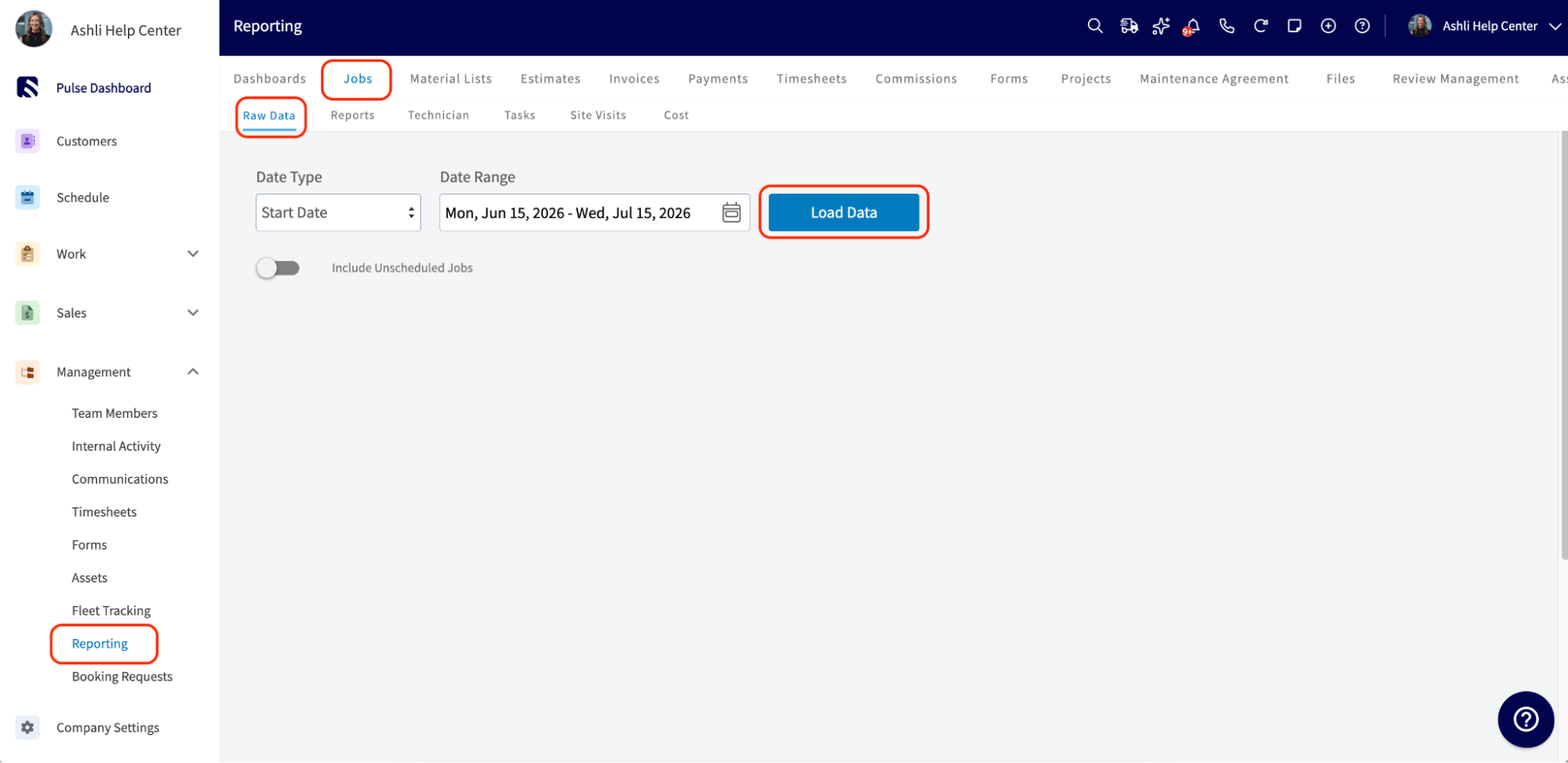
1. In FieldPulse, go to **Reporting** in the left-side menu under the **Management** section.
2. Select the tab the template belongs to — **Jobs**, **Estimates**, **Invoices**, or **Payments** — then select the **Raw Data** subtab.
3. Select **Load Data**. The date range does not matter; this opens the report screen.
 4. Select **Manage Reports**, then drag the downloaded file into the box or select the box to browse for it.
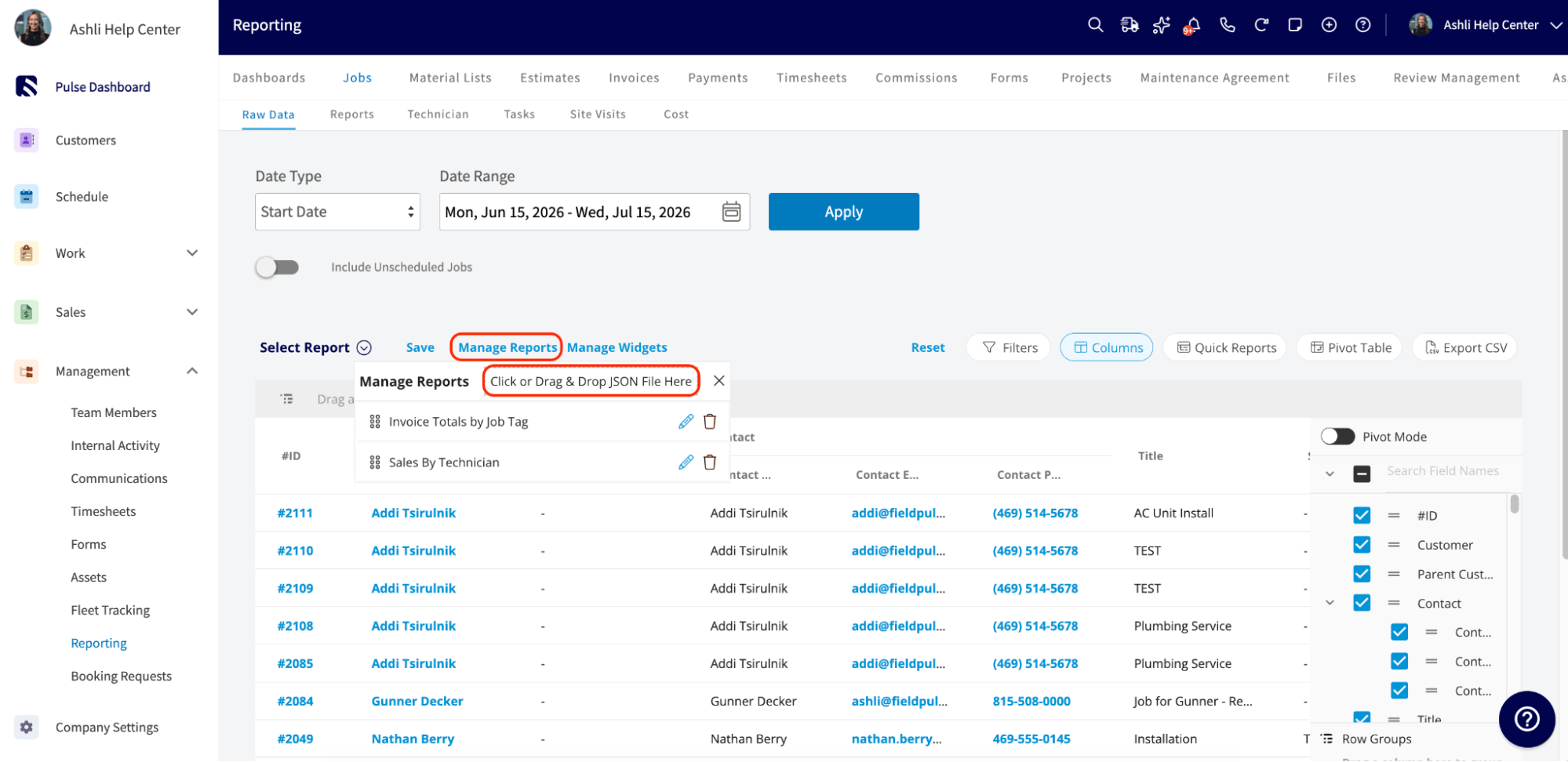 5. The new report appears at the bottom of the list. Open it any time from the **Select Report** dropdown.
The Load Data and Manage Reports controls look the same on every tab.
## Template library
| **Template** | **What it shows** | **Import under** | **Download** |
| - | - | - | - |
| Jobs by Status | Where every job stands across your pipeline — how many are new, scheduled, in progress, or complete. | Jobs | Jobs by Status template |
| Sales by Technician | Performance and revenue by team member, so you can see who is closing the most jobs and generating the most revenue. | Jobs | Sales by Technician template |
| Estimate Conversion Rate | How well your estimates convert into paid jobs — a quick gauge of how your sales process is performing. | Estimates | Estimate Conversion Rate template |
| Estimate Conversion Rate by User | Estimate conversion rate broken down by team member, so you can see who is most effective at closing estimates. | Estimates | Estimate Conversion Rate by User template |
| Estimates by Status | Where every estimate stands — draft, sent, accepted, or declined — in one view. | Estimates | Estimates by Status template |
| Total Sales | A financial snapshot of your overall sales. | Invoices | Total Sales template |
| Sales Tax | A clean record of the sales tax you have collected. | Invoices | Sales Tax template |
| Overdue Invoices | Invoices that are past due, so nothing slips through the cracks. | Invoices | Overdue Invoices template |
| Unpaid Invoices | Every invoice that has not been paid yet, in one place. | Invoices | Unpaid Invoices template |
| Sales by Lead Source | Which marketing channels are bringing in business. | Invoices | Sales by Lead Source template |
| Sales by Invoice Creator | Sales by the team member who created the invoice. | Invoices | Sales by Invoice Creator template |
| Commissions by Recipient | Payroll and commission numbers broken out by who is receiving them. | Invoices | Commissions by Recipient template |
| Payment History | A complete record of every payment received. | Payments | Payment History template |
You are done when the template's name appears in the **Select Report** dropdown of the tab you imported it under and opens with its columns and filters already set.
## Related articles
* [How to Use Raw Data Reporting](/reporting/raw-data/using-raw-data-reporting)
* [How to Build and Configure the Custom Reporting Dashboard](/reporting/custom/custom-reporting-dashboard)
* [How to Create Job Reports](/reporting/raw-data/job-reports)
* [How to Create Invoice Reports](/reporting/raw-data/invoice-reports)
* [How to Create Commission Reports](/reporting/raw-data/commission-reports)
## Related topics
- [Custom Reporting](/reporting/custom/index.md)
- [How to Import and Export Custom Form Templates](/add-ons/custom-forms/import-export.md)
- [How to Create a Job](/jobs/jobs-tasks/creating-a-job.md)
- [How to Create a Maintenance Agreement](/jobs/assets/maintenance-agreements.md)
This documentation is built and hosted on [Mintlify](https://mintlify.com), a developer documentation platform.
5. The new report appears at the bottom of the list. Open it any time from the **Select Report** dropdown.
The Load Data and Manage Reports controls look the same on every tab.
## Template library
| **Template** | **What it shows** | **Import under** | **Download** |
| - | - | - | - |
| Jobs by Status | Where every job stands across your pipeline — how many are new, scheduled, in progress, or complete. | Jobs | Jobs by Status template |
| Sales by Technician | Performance and revenue by team member, so you can see who is closing the most jobs and generating the most revenue. | Jobs | Sales by Technician template |
| Estimate Conversion Rate | How well your estimates convert into paid jobs — a quick gauge of how your sales process is performing. | Estimates | Estimate Conversion Rate template |
| Estimate Conversion Rate by User | Estimate conversion rate broken down by team member, so you can see who is most effective at closing estimates. | Estimates | Estimate Conversion Rate by User template |
| Estimates by Status | Where every estimate stands — draft, sent, accepted, or declined — in one view. | Estimates | Estimates by Status template |
| Total Sales | A financial snapshot of your overall sales. | Invoices | Total Sales template |
| Sales Tax | A clean record of the sales tax you have collected. | Invoices | Sales Tax template |
| Overdue Invoices | Invoices that are past due, so nothing slips through the cracks. | Invoices | Overdue Invoices template |
| Unpaid Invoices | Every invoice that has not been paid yet, in one place. | Invoices | Unpaid Invoices template |
| Sales by Lead Source | Which marketing channels are bringing in business. | Invoices | Sales by Lead Source template |
| Sales by Invoice Creator | Sales by the team member who created the invoice. | Invoices | Sales by Invoice Creator template |
| Commissions by Recipient | Payroll and commission numbers broken out by who is receiving them. | Invoices | Commissions by Recipient template |
| Payment History | A complete record of every payment received. | Payments | Payment History template |
You are done when the template's name appears in the **Select Report** dropdown of the tab you imported it under and opens with its columns and filters already set.
## Related articles
* [How to Use Raw Data Reporting](/reporting/raw-data/using-raw-data-reporting)
* [How to Build and Configure the Custom Reporting Dashboard](/reporting/custom/custom-reporting-dashboard)
* [How to Create Job Reports](/reporting/raw-data/job-reports)
* [How to Create Invoice Reports](/reporting/raw-data/invoice-reports)
* [How to Create Commission Reports](/reporting/raw-data/commission-reports)
## Related topics
- [Custom Reporting](/reporting/custom/index.md)
- [How to Import and Export Custom Form Templates](/add-ons/custom-forms/import-export.md)
- [How to Create a Job](/jobs/jobs-tasks/creating-a-job.md)
- [How to Create a Maintenance Agreement](/jobs/assets/maintenance-agreements.md)
This documentation is built and hosted on [Mintlify](https://mintlify.com), a developer documentation platform.