> ## Documentation Index
> Fetch the complete documentation index at: https://help.fieldpulse.com/llms.txt
> Use this file to discover all available pages before exploring further.
# How to Create Item Usage Reports
> Build an item usage report in FieldPulse to see the items on your invoices, what they cost, and what you charged, grouped by item, job, or customer.
> **Who uses this:** Admins have full reporting access, and Team Managers can be given it. Service Agents and Limited Agents do not have reporting access. **Availability:** All regions.
An item usage report is built from the **Invoices > Item Usage** tab in raw data reporting, and it pulls the line items on your invoices — quantity, unit cost, unit price, total item cost, and total item price — into one table. The three versions teams reach for most are item usage by item, by job, and by customer.
## Overview
An item usage report answers one question about the items you sell and install — how much of each item went onto your invoices, and what those items cost you against what you charged for them. Every row is an invoice line item, so the report also carries the invoice and the parent job each item belongs to.
The item usage report is invoice-based, which is what separates it from the inventory reports under the same **Invoices** tab. [How to Create Inventory Reports](/reporting/raw-data/inventory-reports) covers stock data such as supplier, hub, tags, and unit cost, [How to Create Inventory Count Reports](/reporting/raw-data/inventory-count-reports) compares last counts against expected counts and values, and [How to Create Inventory Audit Reports](/reporting/raw-data/inventory-audit-reports) tracks inventory changes and who made them. [How to Create Serialized Inventory Reports](/reporting/raw-data/serialized-inventory-reports) reports on serialized inventory data such as serial number, unit cost, and item name.
Building an item usage report follows the same path as every other raw data report — choose a date type, set a date range, choose the columns, set filters, then read the table. Item usage reporting is part of [FieldPulse's dashboards and reporting](https://www.fieldpulse.com/features/dashboards-and-reporting). For the parts of the reporting flow that are the same on every record type — saving a report, adding it to your dashboard, and exporting to CSV — see [How to Use Raw Data Reporting](/reporting/raw-data/using-raw-data-reporting).
## Video walkthrough
## Before you begin
* Have invoices in FieldPulse covering the period you want to report on. The item usage report is built from the line items on those invoices.
* Check that your role has reporting access. An Admin has full reporting access; a Team Manager needs **Full Reporting access** turned on.
## Choose the date type
The date type tells the report which invoice date to measure against, so choose it before you set the date range.
1. Select **Reporting** under the **Management** tab in the left-side menu.
2. Select the **Invoices** tab, then select **Item Usage**.
3. Select the date type you want to report on.
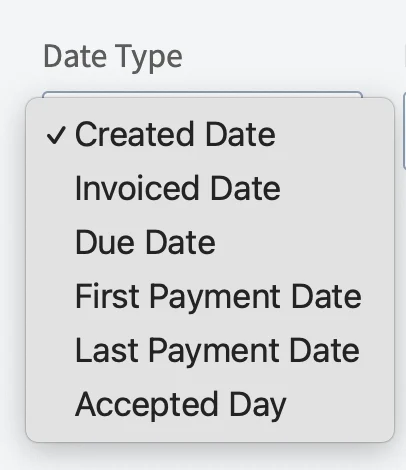 | **Date type** | **What it measures** |
| - | - |
| **Created Date** | When the invoice was created |
| **Invoiced Date** | When the invoice was sent to the customer |
| **Due Date** | When the invoice was due |
| **First Payment Date** | When the customer made their first payment on the invoice |
| **Last Payment Date** | When the customer made their last payment on the invoice |
## Set the date range
1. Select the calendar icon and choose the start date range you want to report on.
2. Select **Load Data**.
| **Date type** | **What it measures** |
| - | - |
| **Created Date** | When the invoice was created |
| **Invoiced Date** | When the invoice was sent to the customer |
| **Due Date** | When the invoice was due |
| **First Payment Date** | When the customer made their first payment on the invoice |
| **Last Payment Date** | When the customer made their last payment on the invoice |
## Set the date range
1. Select the calendar icon and choose the start date range you want to report on.
2. Select **Load Data**.
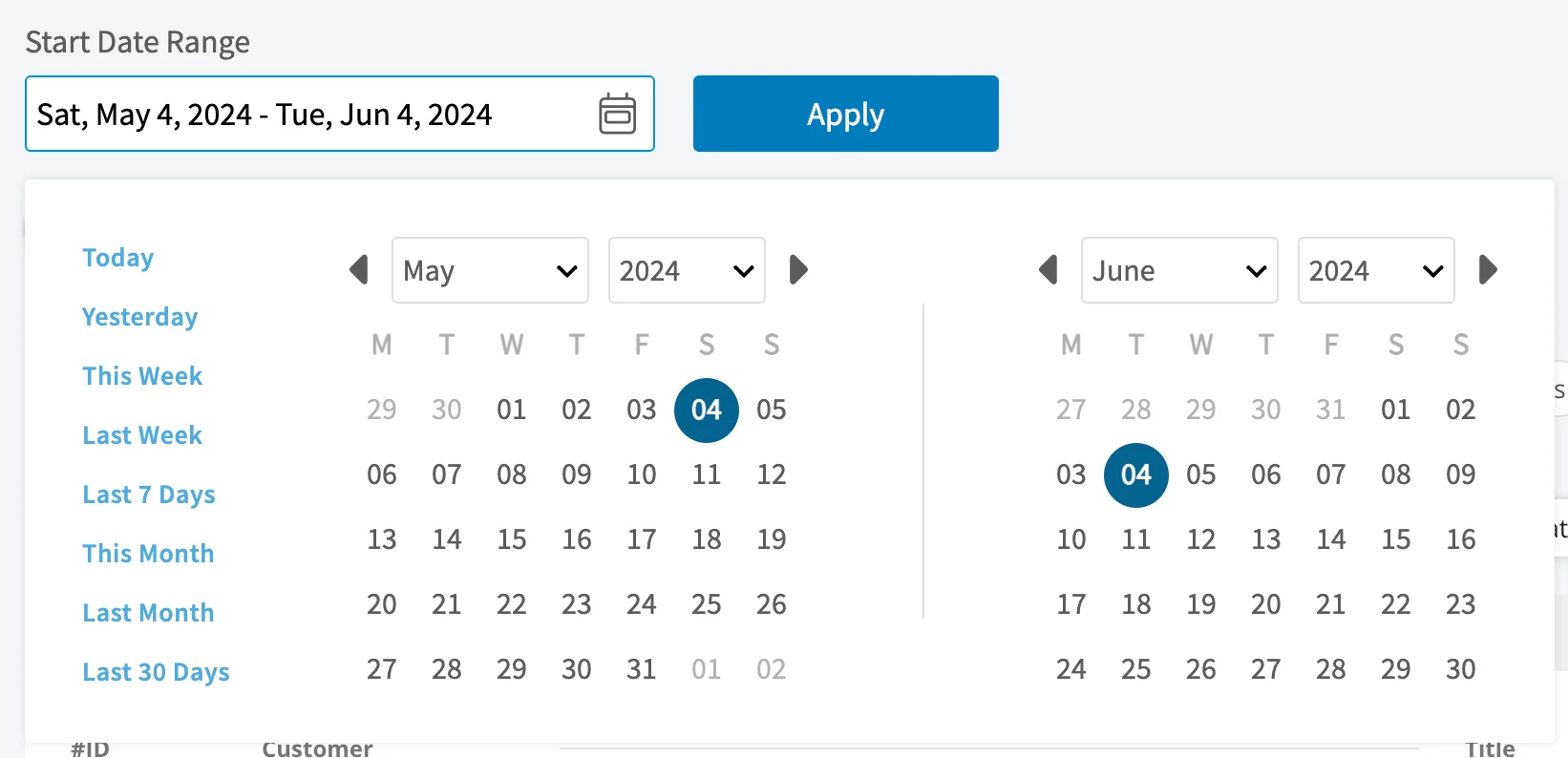 The calendar offers these presets:
| **Preset** | **Date range** |
| - | - |
| **Today** | 12:00 AM to the current time |
| **Yesterday** | The previous day, 12:00 AM to 11:59 PM |
| **This Week** | Monday through Sunday of the current week |
| **Last Week** | The previous week |
| **Last 7 Days** | The previous seven days, including today |
| **This Month** | The first of the current month to the current day |
| **Last Month** | The entire month before the current month |
| **Last 30 Days** | The previous 30 days, including today |
| **Custom** | Start and end dates you select on the calendar |
## Choose your columns
Select **Columns** to choose which item usage fields appear in the report table and the order they appear in.
The calendar offers these presets:
| **Preset** | **Date range** |
| - | - |
| **Today** | 12:00 AM to the current time |
| **Yesterday** | The previous day, 12:00 AM to 11:59 PM |
| **This Week** | Monday through Sunday of the current week |
| **Last Week** | The previous week |
| **Last 7 Days** | The previous seven days, including today |
| **This Month** | The first of the current month to the current day |
| **Last Month** | The entire month before the current month |
| **Last 30 Days** | The previous 30 days, including today |
| **Custom** | Start and end dates you select on the calendar |
## Choose your columns
Select **Columns** to choose which item usage fields appear in the report table and the order they appear in.
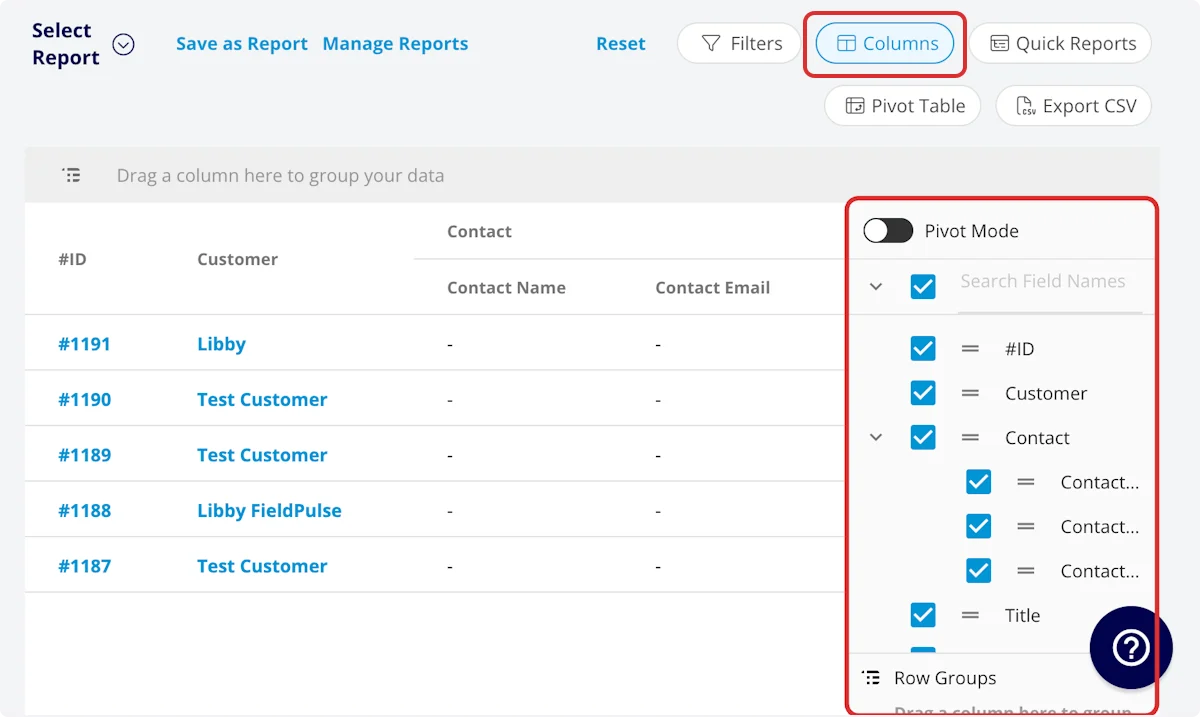 The item usage report includes these columns by default:
| **Column** | **What it holds** |
| - | - |
| **Item Name** | Line item name |
| **Item Type** | Product - Inventory, Product - Non Inventory, or Service - Labor |
| **Item Description** | Item description |
| **Item Quantity** | Item quantity on the related invoice |
| **Unit Cost** | Unit cost |
| **Unit Price** | Unit price |
| **SKU/ID#** | Item #/SKU |
| **Serialized Inventory** | The specific serial number for a serialized inventory item, including items transferred in from a material list |
| **Total Item Cost** | Unit cost × item quantity |
| **Total Item Price** | Unit price × item quantity |
| **QuickBooks Class** | The class shown if you sync with QuickBooks |
| **Invoice — Invoice ID#** | Invoice number |
| **Invoice — Invoice Customer** | Customer linked to the invoice |
| **Invoice — Invoice Creator Name** | Author of the invoice |
| **Invoice — Invoice Created Date** | Date and time the invoice was created |
| **Invoice — Invoice Sent Date** | Date and time the invoice was sent to the customer |
| **Invoice — Invoice Status** | Invoice status |
| **Invoice — Custom Fields** | User-created fields related to the invoice |
| **Parent Job — Job ID#** | Job number |
| **Parent Job — Job Title** | Job record title |
| **Parent Job — Job Status** | Job workflow status |
| **Parent Job — Start Date/Time** | Date and time the job was scheduled to begin |
| **Parent Job — End Date/Time** | Date and time the job was scheduled to end |
| **Parent Job — Created At** | Date and time the job record was created |
| **Parent Job — Location** | Service location for the job |
| **Parent Job — Assigned Team Members** | Users assigned to the job |
| **Parent Job — Assigned Teams** | Teams assigned to the job |
| **Parent Job — Notes** | Notes on the job record |
| **Parent Job — Field Notes** | Notes left by assigned users on the job |
| **Parent Job — Tags** | Tags attached to the job record |
| **Parent Job — Scheduled Duration** | Time scheduled for the job, recorded in HH:MM:SS |
| **Parent Job — Job Duration** | Time spent in In Progress status type, recorded in HH:MM:SS |
| **Parent Job — Travel Duration** | Time spent in On The Way status type, recorded in HH:MM:SS |
| **Parent Job — Custom Fields** | User-created fields related to the job record |
| **Grouping Title** | Grouping under which the line item is housed on the invoice |
## Set your filters
Before running the report, set filters to narrow the results. Select the **Filters** icon, then choose how you want to filter the report.
The item usage report includes these columns by default:
| **Column** | **What it holds** |
| - | - |
| **Item Name** | Line item name |
| **Item Type** | Product - Inventory, Product - Non Inventory, or Service - Labor |
| **Item Description** | Item description |
| **Item Quantity** | Item quantity on the related invoice |
| **Unit Cost** | Unit cost |
| **Unit Price** | Unit price |
| **SKU/ID#** | Item #/SKU |
| **Serialized Inventory** | The specific serial number for a serialized inventory item, including items transferred in from a material list |
| **Total Item Cost** | Unit cost × item quantity |
| **Total Item Price** | Unit price × item quantity |
| **QuickBooks Class** | The class shown if you sync with QuickBooks |
| **Invoice — Invoice ID#** | Invoice number |
| **Invoice — Invoice Customer** | Customer linked to the invoice |
| **Invoice — Invoice Creator Name** | Author of the invoice |
| **Invoice — Invoice Created Date** | Date and time the invoice was created |
| **Invoice — Invoice Sent Date** | Date and time the invoice was sent to the customer |
| **Invoice — Invoice Status** | Invoice status |
| **Invoice — Custom Fields** | User-created fields related to the invoice |
| **Parent Job — Job ID#** | Job number |
| **Parent Job — Job Title** | Job record title |
| **Parent Job — Job Status** | Job workflow status |
| **Parent Job — Start Date/Time** | Date and time the job was scheduled to begin |
| **Parent Job — End Date/Time** | Date and time the job was scheduled to end |
| **Parent Job — Created At** | Date and time the job record was created |
| **Parent Job — Location** | Service location for the job |
| **Parent Job — Assigned Team Members** | Users assigned to the job |
| **Parent Job — Assigned Teams** | Teams assigned to the job |
| **Parent Job — Notes** | Notes on the job record |
| **Parent Job — Field Notes** | Notes left by assigned users on the job |
| **Parent Job — Tags** | Tags attached to the job record |
| **Parent Job — Scheduled Duration** | Time scheduled for the job, recorded in HH:MM:SS |
| **Parent Job — Job Duration** | Time spent in In Progress status type, recorded in HH:MM:SS |
| **Parent Job — Travel Duration** | Time spent in On The Way status type, recorded in HH:MM:SS |
| **Parent Job — Custom Fields** | User-created fields related to the job record |
| **Grouping Title** | Grouping under which the line item is housed on the invoice |
## Set your filters
Before running the report, set filters to narrow the results. Select the **Filters** icon, then choose how you want to filter the report.
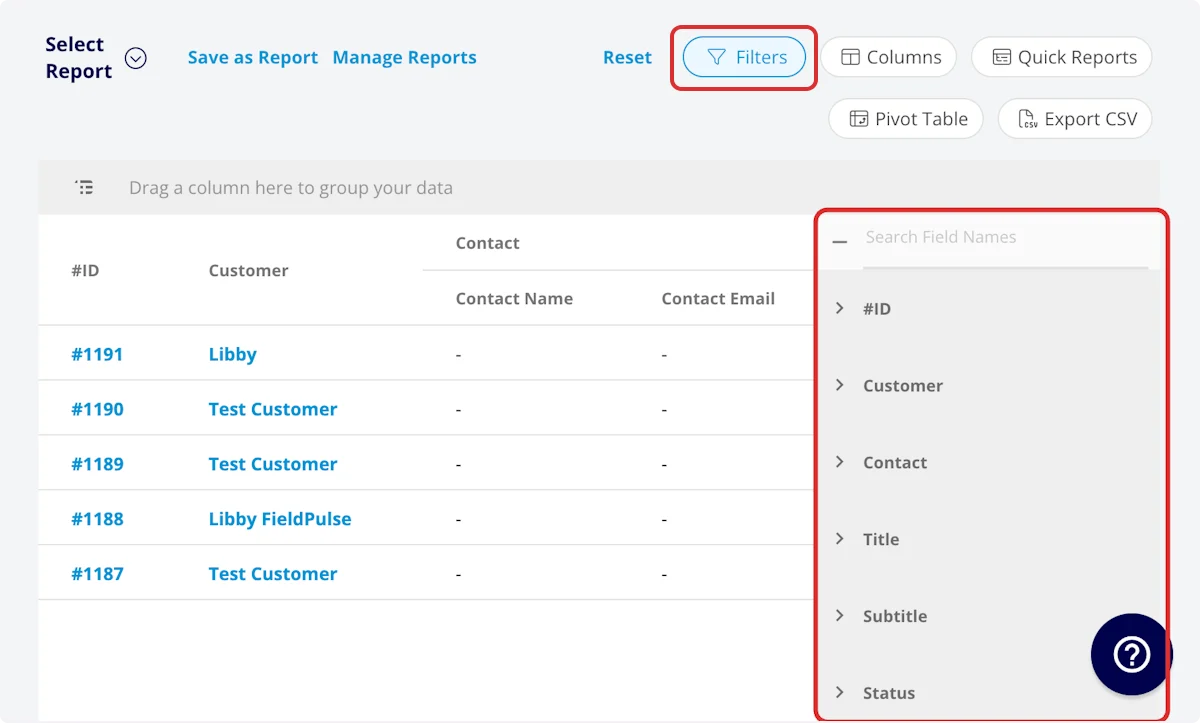 The **Filters** panel offers these item usage fields:
| **Field** | **How you filter** |
| - | - |
| **Item Name** | By contents |
| **Item Description** | By contents |
| **SKU/ID#** | By contents |
| **Invoice — Invoice ID#** | By contents |
| **Invoice — Invoice Customer** | By contents |
| **Invoice — Invoice Creator Name** | By contents |
| **Invoice — Invoice Created Date** | By date |
| **Invoice — Invoice Sent Date** | By date |
| **Invoice — Invoice Status** | Select the status |
| **Parent Job — Job ID#** | By contents |
| **Parent Job — Job Title** | By contents |
| **Parent Job — Job Status** | Select the status |
| **Parent Job — Start Date/Time** | By date |
| **Parent Job — End Date/Time** | By date |
| **Parent Job — Created At** | By date |
| **Parent Job — Location** | By contents |
| **Parent Job — Assigned Team Members** | By contents |
| **Parent Job — Assigned Teams** | By contents |
| **Parent Job — Notes** | By contents |
| **Parent Job — Field Notes** | By contents |
| **Parent Job — Tags** | By contents |
| **Parent Job — Scheduled Duration** | By contents |
| **Parent Job — Job Duration** | By contents |
| **Parent Job — Travel Duration** | By contents |
| **Grouping Title** | By contents |
### Filter operators
When you filter by contents, choose an operator and then enter the values to filter the data on.
| **Operator** | **Retrieves data** | **Example** | **Data retrieved** |
| - | - | - | - |
| Equals | Equal to a specified value | Invoice Creator Name - Equals Tom Gause | For all line items on invoices created by Tom Gause only |
| Not Equal | Different from a specified value | Tags - Not Equal to HVAC | For all line items except those on jobs using the HVAC tag |
| Less Than | Lower than a specified value | Invoice ID# - Less than 1144 | For all line items on invoices below #1144 |
| Less Than or Equal To | Lower than or equal to a specified value | Invoice Created Date - Less than or equal to 12/13/2023 | For all line items on invoices created on or before 12/13/2023 |
| Greater Than | Greater than a specified value | Total Item Price - Greater than 500 | For all line items with a total item price over \$500 |
| Greater Than or Equal To | Greater than or equal to a specified value | Invoice Sent Date - Greater than or equal to 1/1/2024 | For all line items on invoices sent on or after 1/1/2024 |
| In Range | Including and between two specified values | Invoice ID# - Between 1225 and 1236 | For all line items on invoices with #IDs between 1225 and 1236 |
| Starts With | Begins with a specified value | SKU/ID# - AC | For all line items whose SKU/ID# begins with AC |
| Ends With | Ends with a specified value | Location - TX | For all line items on jobs whose location ends with TX |
| Blank | No values are in the field | Grouping Title | For all line items not housed under a grouping |
| Not Blank | Values in the field | Item Description | For all line items with values in the item description field |
## Common item usage reports
Three item usage reports cover most of what teams need. Each one uses the columns you want plus a required column or two, and a different grouping.
### Item usage by item
Use this report to see item usage by item, along with the total item cost and total item price.
* **Columns:** customize to your needs, but include **Item Name**, **Total Item Cost**, and **Total Item Price**.
* **Group by:** **Item Name**
### Item usage by job
Use this report to see item usage by job.
* **Columns:** customize to your needs, but include **Parent Job**.
* **Group by:** **Parent Job**
### Item usage by customer
Use this report to see item usage by customer. It is the report to run when you have completed multiple jobs for one customer over an extended period of time.
* **Columns:** customize to your needs, but include **Invoice Customer**.
* **Group by:** **Invoice Customer**
## Roll-up reporting
The item usage report is included in roll-up reporting for locations and franchisors, providing a comprehensive view of item usage across all of your operations. See [How to Use Franchise Roll-Up Reporting](/settings/account-structures/franchise-roll-up-reporting).
Your item usage report is working when the table returns the invoice line items you expected for the date range, shows the cost and price columns you selected, and rolls up under the item, job, or customer you grouped by.
## FAQs
**Can I save an item usage report to use again?**
Yes. Select **Save as Report**, then **Save as New** to store it under **Select Report**, or **Save as Widget** to add it to your Pulse Dashboard. See [How to Use Raw Data Reporting](/reporting/raw-data/using-raw-data-reporting) for the full saving flow.
**Can I export an item usage report to a spreadsheet?**
Yes. Select **Export CSV** to download the report currently on your screen as a CSV file to your device.
## Related articles
* [How to Use Raw Data Reporting](/reporting/raw-data/using-raw-data-reporting)
* [How to Create Invoice Item Reports](/reporting/raw-data/invoice-item-reports)
* [How to Create Inventory Reports](/reporting/raw-data/inventory-reports)
* [Setting Up Item List & Inventory](/inventory-materials/item-list/adding-items)
* [How to Manage Purchase Orders](/inventory-materials/purchase-orders/managing)
## Related topics
- [How to Create Invoice Item Reports](/reporting/raw-data/invoice-item-reports.md)
- [How to Create Serialized Inventory Reports](/reporting/raw-data/serialized-inventory-reports.md)
- [How to Create Inventory Audit Reports](/reporting/raw-data/inventory-audit-reports.md)
- [How to Create Inventory Count Reports](/reporting/raw-data/inventory-count-reports.md)
This documentation is built and hosted on [Mintlify](https://mintlify.com), a developer documentation platform.
The **Filters** panel offers these item usage fields:
| **Field** | **How you filter** |
| - | - |
| **Item Name** | By contents |
| **Item Description** | By contents |
| **SKU/ID#** | By contents |
| **Invoice — Invoice ID#** | By contents |
| **Invoice — Invoice Customer** | By contents |
| **Invoice — Invoice Creator Name** | By contents |
| **Invoice — Invoice Created Date** | By date |
| **Invoice — Invoice Sent Date** | By date |
| **Invoice — Invoice Status** | Select the status |
| **Parent Job — Job ID#** | By contents |
| **Parent Job — Job Title** | By contents |
| **Parent Job — Job Status** | Select the status |
| **Parent Job — Start Date/Time** | By date |
| **Parent Job — End Date/Time** | By date |
| **Parent Job — Created At** | By date |
| **Parent Job — Location** | By contents |
| **Parent Job — Assigned Team Members** | By contents |
| **Parent Job — Assigned Teams** | By contents |
| **Parent Job — Notes** | By contents |
| **Parent Job — Field Notes** | By contents |
| **Parent Job — Tags** | By contents |
| **Parent Job — Scheduled Duration** | By contents |
| **Parent Job — Job Duration** | By contents |
| **Parent Job — Travel Duration** | By contents |
| **Grouping Title** | By contents |
### Filter operators
When you filter by contents, choose an operator and then enter the values to filter the data on.
| **Operator** | **Retrieves data** | **Example** | **Data retrieved** |
| - | - | - | - |
| Equals | Equal to a specified value | Invoice Creator Name - Equals Tom Gause | For all line items on invoices created by Tom Gause only |
| Not Equal | Different from a specified value | Tags - Not Equal to HVAC | For all line items except those on jobs using the HVAC tag |
| Less Than | Lower than a specified value | Invoice ID# - Less than 1144 | For all line items on invoices below #1144 |
| Less Than or Equal To | Lower than or equal to a specified value | Invoice Created Date - Less than or equal to 12/13/2023 | For all line items on invoices created on or before 12/13/2023 |
| Greater Than | Greater than a specified value | Total Item Price - Greater than 500 | For all line items with a total item price over \$500 |
| Greater Than or Equal To | Greater than or equal to a specified value | Invoice Sent Date - Greater than or equal to 1/1/2024 | For all line items on invoices sent on or after 1/1/2024 |
| In Range | Including and between two specified values | Invoice ID# - Between 1225 and 1236 | For all line items on invoices with #IDs between 1225 and 1236 |
| Starts With | Begins with a specified value | SKU/ID# - AC | For all line items whose SKU/ID# begins with AC |
| Ends With | Ends with a specified value | Location - TX | For all line items on jobs whose location ends with TX |
| Blank | No values are in the field | Grouping Title | For all line items not housed under a grouping |
| Not Blank | Values in the field | Item Description | For all line items with values in the item description field |
## Common item usage reports
Three item usage reports cover most of what teams need. Each one uses the columns you want plus a required column or two, and a different grouping.
### Item usage by item
Use this report to see item usage by item, along with the total item cost and total item price.
* **Columns:** customize to your needs, but include **Item Name**, **Total Item Cost**, and **Total Item Price**.
* **Group by:** **Item Name**
### Item usage by job
Use this report to see item usage by job.
* **Columns:** customize to your needs, but include **Parent Job**.
* **Group by:** **Parent Job**
### Item usage by customer
Use this report to see item usage by customer. It is the report to run when you have completed multiple jobs for one customer over an extended period of time.
* **Columns:** customize to your needs, but include **Invoice Customer**.
* **Group by:** **Invoice Customer**
## Roll-up reporting
The item usage report is included in roll-up reporting for locations and franchisors, providing a comprehensive view of item usage across all of your operations. See [How to Use Franchise Roll-Up Reporting](/settings/account-structures/franchise-roll-up-reporting).
Your item usage report is working when the table returns the invoice line items you expected for the date range, shows the cost and price columns you selected, and rolls up under the item, job, or customer you grouped by.
## FAQs
**Can I save an item usage report to use again?**
Yes. Select **Save as Report**, then **Save as New** to store it under **Select Report**, or **Save as Widget** to add it to your Pulse Dashboard. See [How to Use Raw Data Reporting](/reporting/raw-data/using-raw-data-reporting) for the full saving flow.
**Can I export an item usage report to a spreadsheet?**
Yes. Select **Export CSV** to download the report currently on your screen as a CSV file to your device.
## Related articles
* [How to Use Raw Data Reporting](/reporting/raw-data/using-raw-data-reporting)
* [How to Create Invoice Item Reports](/reporting/raw-data/invoice-item-reports)
* [How to Create Inventory Reports](/reporting/raw-data/inventory-reports)
* [Setting Up Item List & Inventory](/inventory-materials/item-list/adding-items)
* [How to Manage Purchase Orders](/inventory-materials/purchase-orders/managing)
## Related topics
- [How to Create Invoice Item Reports](/reporting/raw-data/invoice-item-reports.md)
- [How to Create Serialized Inventory Reports](/reporting/raw-data/serialized-inventory-reports.md)
- [How to Create Inventory Audit Reports](/reporting/raw-data/inventory-audit-reports.md)
- [How to Create Inventory Count Reports](/reporting/raw-data/inventory-count-reports.md)
This documentation is built and hosted on [Mintlify](https://mintlify.com), a developer documentation platform.