> ## Documentation Index
> Fetch the complete documentation index at: https://help.fieldpulse.com/llms.txt
> Use this file to discover all available pages before exploring further.
# How to Create Serialized Inventory Reports
> Build a serialized inventory report in FieldPulse to track each unit by serial number, hub, and unit cost — where each unit sits and what it is worth.
> **Who uses this:** Admins have full reporting access, and Team Managers can be given it. Service Agents and Limited Agents do not have reporting access. **Availability:** All regions.
A serialized inventory report is built from the **Invoices > Serialized Inventory** tab in raw data reporting, and it reports on serialized inventory data including serial number, unit cost, item name, and more. Two common versions of it are serialized inventory by parent line item and serialized inventory by hub.
## Overview
A serialized inventory report lists your serialized inventory unit by unit, with the serial number, ID number, unit cost, and hub for each one. Serialized inventory is the tracking of individual items by unique serial number, so a serialized inventory report is the report to run when you need to know which specific unit you hold and where it sits.
Building a serialized inventory report follows the same path as every other raw data report — set a date range, choose the columns, set the filters, then read the table. Serialized inventory reporting is part of [FieldPulse's dashboards and reporting](https://www.fieldpulse.com/features/dashboards-and-reporting). For the parts of the reporting flow that are the same on every record type — saving a report, adding it to your dashboard, and exporting to CSV — see [How to Use Raw Data Reporting](/reporting/raw-data/using-raw-data-reporting).
Other inventory reports sit on nearby tabs:
* [How to Create Inventory Reports](/reporting/raw-data/inventory-reports) — inventory data such as supplier, tags, and unit cost.
* [How to Create Inventory Count Reports](/reporting/raw-data/inventory-count-reports) — each item's last count and value against what was expected, for regular inventory, serialized inventory, or both.
* [How to Create Inventory Audit Reports](/reporting/raw-data/inventory-audit-reports) — the history of inventory changes, including who made each change and when.
* [How to Create Item Usage Reports](/reporting/raw-data/item-usage-reports) — item usage data such as item quantity, total cost, and total price.
## Video walkthrough
## Before you begin
* Turn on serialized tracking for the items you want in the report. Serialized inventory applies only to line items with the item type **Product - Inventory**. See [Serialized Inventory Overview](/inventory-materials/item-list/serialized-inventory).
* Set up the inventory hubs your serialized units are stored in. See [Inventory Hubs Overview](/inventory-materials/item-list/inventory-hubs).
* Check that your role has reporting access. An Admin has full reporting access; a Team Manager needs **Full Reporting access** turned on.
## Set the date range
1. Select **Reporting** under the **Management** tab in the left-side menu.
2. Select the **Invoices** tab, then select **Serialized Inventory**.
3. Select the calendar icon next to **Start Date Range** and choose the date range you want to report on.
4. Select **Load Data**.
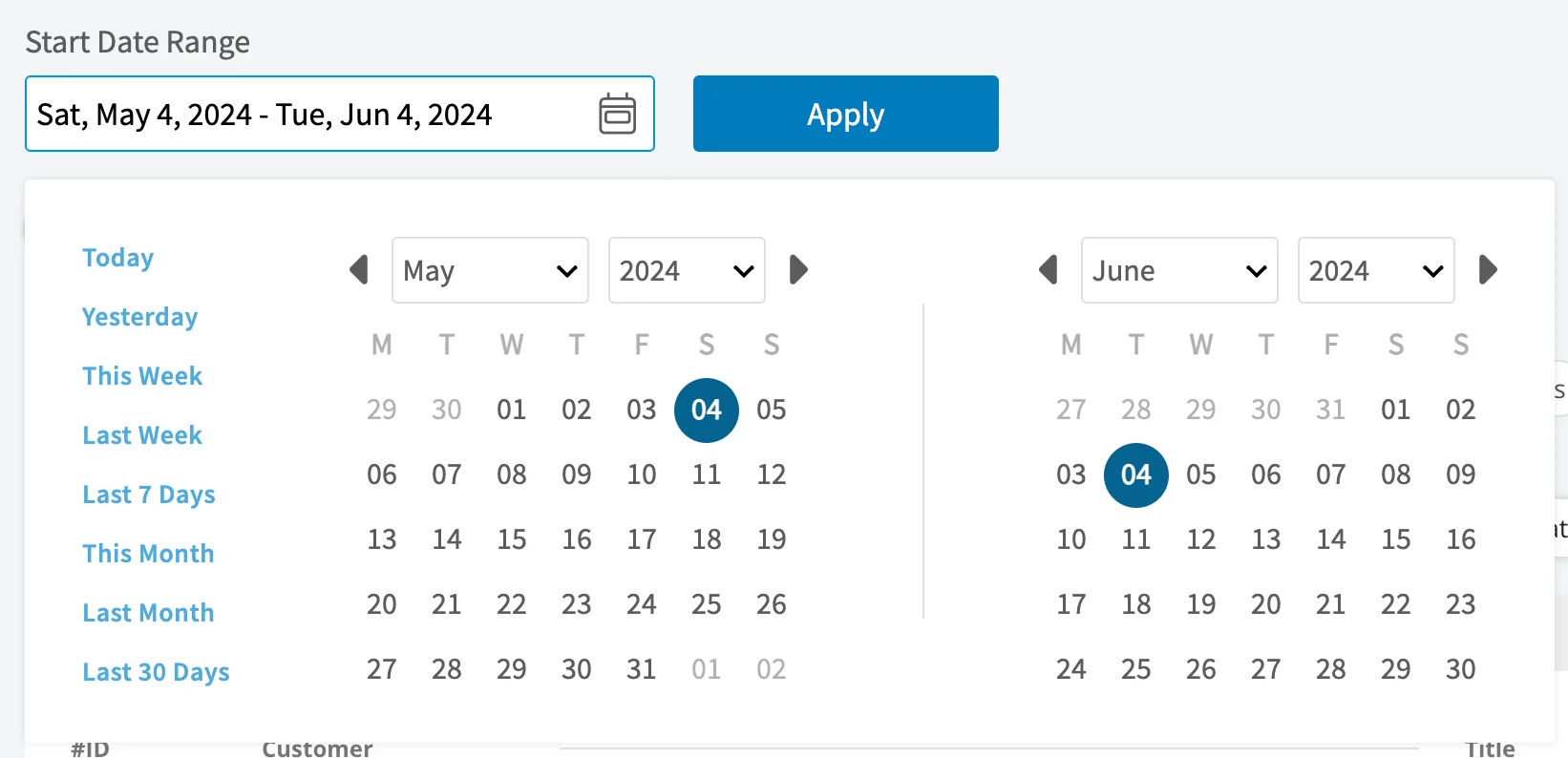 The calendar offers these presets:
| **Preset** | **Date range** |
| - | - |
| **Today** | 12:00 AM to the current time |
| **Yesterday** | The previous day, 12:00 AM to 11:59 PM |
| **This Week** | Monday through Sunday of the current week |
| **Last Week** | The previous week |
| **Last 7 Days** | The previous seven days, including today |
| **This Month** | The first of the current month to the current day |
| **Last Month** | The entire month before the current month |
| **Last 30 Days** | The previous 30 days, including today |
| **Custom** | Start and end dates you select on the calendar |
## Choose your columns
Select **Columns** to choose which serialized inventory fields appear in the report table and the order they appear in.
The calendar offers these presets:
| **Preset** | **Date range** |
| - | - |
| **Today** | 12:00 AM to the current time |
| **Yesterday** | The previous day, 12:00 AM to 11:59 PM |
| **This Week** | Monday through Sunday of the current week |
| **Last Week** | The previous week |
| **Last 7 Days** | The previous seven days, including today |
| **This Month** | The first of the current month to the current day |
| **Last Month** | The entire month before the current month |
| **Last 30 Days** | The previous 30 days, including today |
| **Custom** | Start and end dates you select on the calendar |
## Choose your columns
Select **Columns** to choose which serialized inventory fields appear in the report table and the order they appear in.
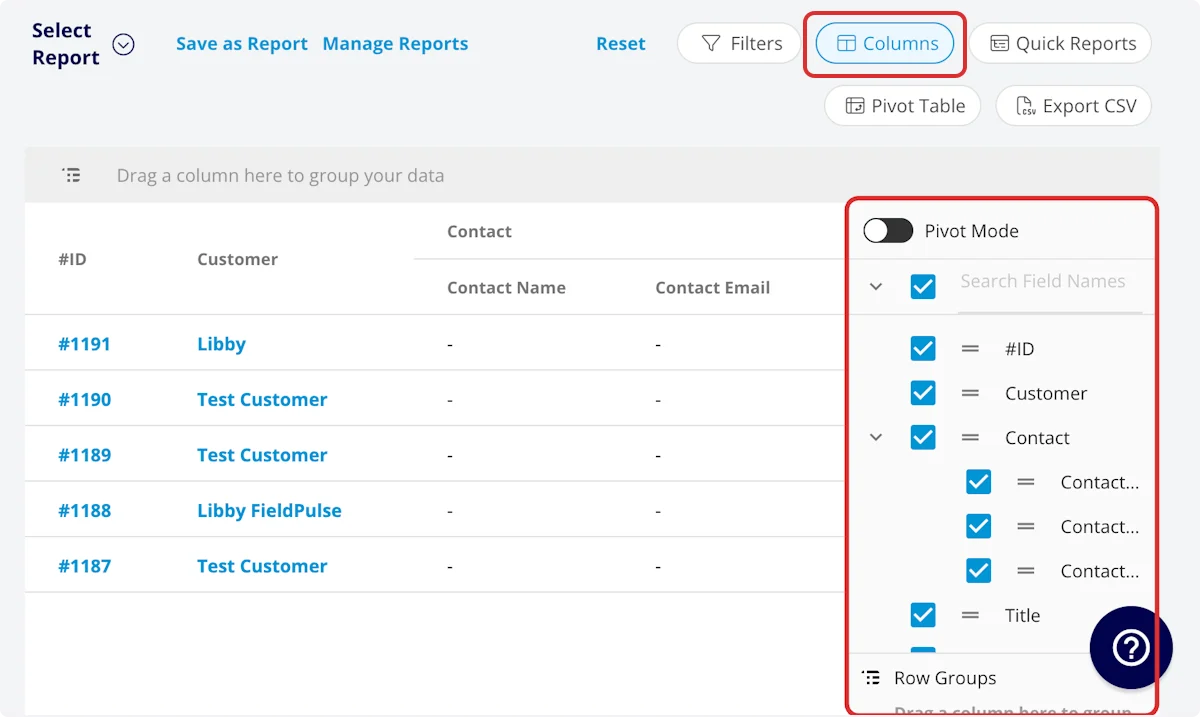 The serialized inventory report includes these columns by default:
| **Column** | **What it holds** |
| - | - |
| **Item Name** | Line item name |
| **Serial Number** | Serial number |
| **ID Number** | ID number |
| **Unit Cost** | Unit cost for the serialized item |
| **Reference Number** | Reference number |
| **Received At** | Date and time the serialized item was received |
| **Created At** | Date and time the serialized item was created |
| **Hub** | Hub where the item is located |
| **Asset Template** | Linked asset template |
| **Item Description** | Item description |
| **Parent Unit Cost** | Unit cost of the parent line item |
| **Parent Unit Price** | Unit price of the parent line item |
| **Tax** | Yes/No |
| **Type** | Product - Inventory |
| **Item ID#/SKU** | Item #/SKU |
| **UPC** | UPC/barcode |
| **Tags** | Tags on the line item |
## Set your filters
Before running the report, set filters to narrow the results. Select the **Filters** icon, then choose how you want to filter the report.
The serialized inventory report includes these columns by default:
| **Column** | **What it holds** |
| - | - |
| **Item Name** | Line item name |
| **Serial Number** | Serial number |
| **ID Number** | ID number |
| **Unit Cost** | Unit cost for the serialized item |
| **Reference Number** | Reference number |
| **Received At** | Date and time the serialized item was received |
| **Created At** | Date and time the serialized item was created |
| **Hub** | Hub where the item is located |
| **Asset Template** | Linked asset template |
| **Item Description** | Item description |
| **Parent Unit Cost** | Unit cost of the parent line item |
| **Parent Unit Price** | Unit price of the parent line item |
| **Tax** | Yes/No |
| **Type** | Product - Inventory |
| **Item ID#/SKU** | Item #/SKU |
| **UPC** | UPC/barcode |
| **Tags** | Tags on the line item |
## Set your filters
Before running the report, set filters to narrow the results. Select the **Filters** icon, then choose how you want to filter the report.
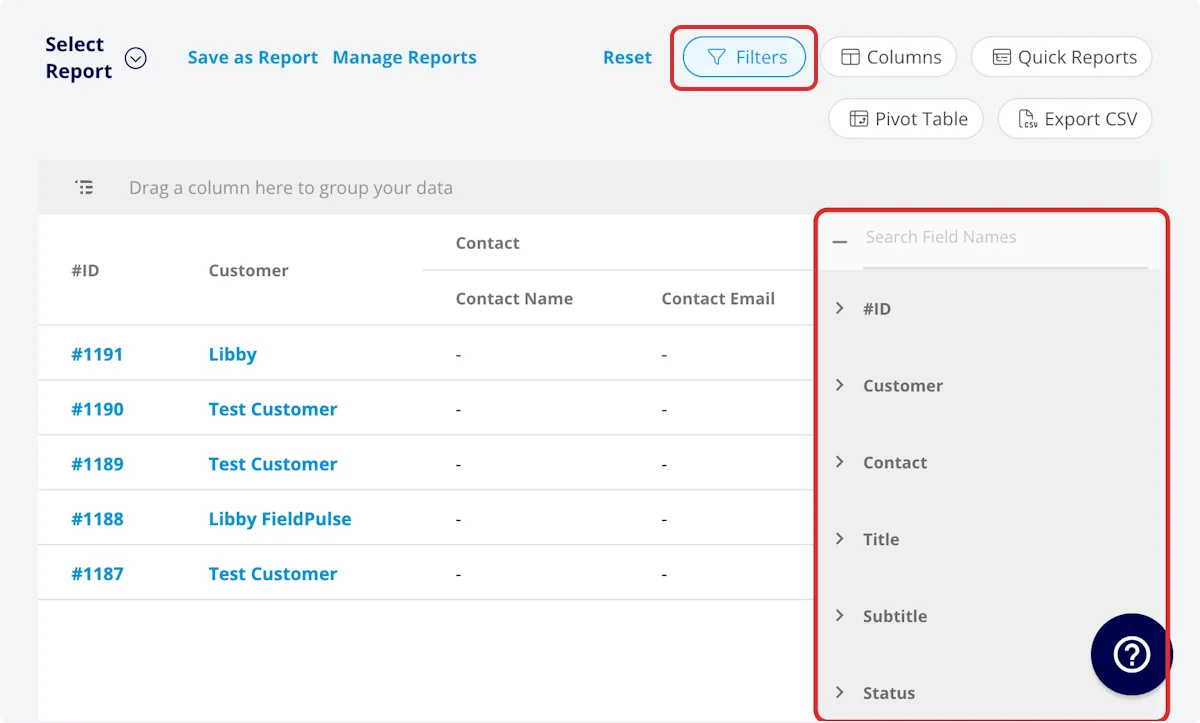 The **Filters** panel offers these fields on a serialized inventory report:
| **Field** | **How you filter** |
| - | - |
| **Item Name** | Filter by contents |
| **Serial Number** | Filter by contents |
| **ID Number** | Filter by contents |
| **Reference Number** | Filter by contents |
| **Received At** | Filter by date |
| **Created At** | Filter by date |
| **Hub** | Select the hub |
| **Asset Template** | Select the template |
| **Item Description** | Filter by contents |
| **Type** | Filter by contents |
| **Item ID#/SKU** | Filter by contents |
| **Tags** | Filter by contents |
### Filter operators
When you filter by contents, choose an operator and then enter the values to filter the data on.
| **Operator** | **Retrieves data** | **Example** | **Data retrieved** |
| - | - | - | - |
| Equals | Equal to a specified value | Item Name - Equals Condenser | For all serialized units of the Condenser item only |
| Not Equal | Different from a specified value | Tags - Not Equal to HVAC | For all serialized units except those using the HVAC tag |
| Less Than | Lower than a specified value | Unit Cost - Less than 100 | For all serialized units with a unit cost under \$100 |
| Less Than or Equal To | Lower than or equal to a specified value | Received At - Less than or equal to 12/13/2023 | For all serialized units received on or before 12/13/2023 |
| Greater Than | Greater than a specified value | Parent Unit Price - Greater than 1000 | For all serialized units whose parent line item sells for over \$1,000 |
| Greater Than or Equal To | Greater than or equal to a specified value | Received At - Greater than or equal to 1/1/2024 | For all serialized units received on or after 1/1/2024 |
| In Range | Including and between two specified values | Unit Cost - Between 100 and 500 | For all serialized units with a unit cost between \$100 and \$500 |
| Starts With | Begins with a specified value | Serial Number - 2023 | For all serialized units whose serial number begins with 2023 |
| Ends With | Ends with a specified value | Item ID#/SKU - XL | For all serialized units whose SKU ends with XL |
| Blank | No values are in the field | Reference Number | For all serialized units with blank reference numbers |
| Not Blank | Values in the field | Item Description | For all serialized units with values in the item description field |
## Common serialized inventory reports
### Serialized inventory by parent line item
Use this report to view each serialized inventory item grouped by the parent line item.
* **Columns:** customize to your needs.
* **Group by:** **Item Name**.
### Serialized inventory by hub
Use this report to view each serialized inventory item and where each item is stored.
* **Columns:** customize to your needs, but include **Item Name**, **Serial Number**, and **Hub**.
* **Group by:** **Hub**.
Your serialized inventory report is working when the table returns one row per serialized unit for the date range you set, each row shows the serial number, unit cost, and hub you selected, and grouping by **Hub** or **Item Name** rolls the units up the way you need to read them.
## Tips
* Keep **Received At** in the report to see the date and time each unit was received.
* Include **Asset Template** to see the asset template linked to each unit.
* Filter by **Hub** to report on one storage location at a time.
## FAQs
**Can I save a serialized inventory report to use again?**
Yes. Select **Save as Report**, then **Save as New** to store it under **Select Report**, or **Save as Widget** to add it to your Pulse Dashboard. See [How to Use Raw Data Reporting](/reporting/raw-data/using-raw-data-reporting) for the full saving flow.
**Can I export a serialized inventory report to a spreadsheet?**
Yes. Select **Export CSV** to download the report currently on your screen as a CSV file to your device.
## Related articles
* [How to Use Raw Data Reporting](/reporting/raw-data/using-raw-data-reporting)
* [Serialized Inventory Overview](/inventory-materials/item-list/serialized-inventory)
* [Inventory Hubs Overview](/inventory-materials/item-list/inventory-hubs)
* [How to Import Serialized Inventory](/settings/data/importing-serialized-inventory)
* [How to Create Inventory Reports](/reporting/raw-data/inventory-reports)
* [How to Create Inventory Count Reports](/reporting/raw-data/inventory-count-reports)
* [How to Create Inventory Audit Reports](/reporting/raw-data/inventory-audit-reports)
## Related topics
- [Serialized Inventory Overview](/inventory-materials/item-list/serialized-inventory.md)
- [How to Create Inventory Count Reports](/reporting/raw-data/inventory-count-reports.md)
- [How to Create Inventory Reports](/reporting/raw-data/inventory-reports.md)
- [How to Create Inventory Audit Reports](/reporting/raw-data/inventory-audit-reports.md)
This documentation is built and hosted on [Mintlify](https://mintlify.com), a developer documentation platform.
The **Filters** panel offers these fields on a serialized inventory report:
| **Field** | **How you filter** |
| - | - |
| **Item Name** | Filter by contents |
| **Serial Number** | Filter by contents |
| **ID Number** | Filter by contents |
| **Reference Number** | Filter by contents |
| **Received At** | Filter by date |
| **Created At** | Filter by date |
| **Hub** | Select the hub |
| **Asset Template** | Select the template |
| **Item Description** | Filter by contents |
| **Type** | Filter by contents |
| **Item ID#/SKU** | Filter by contents |
| **Tags** | Filter by contents |
### Filter operators
When you filter by contents, choose an operator and then enter the values to filter the data on.
| **Operator** | **Retrieves data** | **Example** | **Data retrieved** |
| - | - | - | - |
| Equals | Equal to a specified value | Item Name - Equals Condenser | For all serialized units of the Condenser item only |
| Not Equal | Different from a specified value | Tags - Not Equal to HVAC | For all serialized units except those using the HVAC tag |
| Less Than | Lower than a specified value | Unit Cost - Less than 100 | For all serialized units with a unit cost under \$100 |
| Less Than or Equal To | Lower than or equal to a specified value | Received At - Less than or equal to 12/13/2023 | For all serialized units received on or before 12/13/2023 |
| Greater Than | Greater than a specified value | Parent Unit Price - Greater than 1000 | For all serialized units whose parent line item sells for over \$1,000 |
| Greater Than or Equal To | Greater than or equal to a specified value | Received At - Greater than or equal to 1/1/2024 | For all serialized units received on or after 1/1/2024 |
| In Range | Including and between two specified values | Unit Cost - Between 100 and 500 | For all serialized units with a unit cost between \$100 and \$500 |
| Starts With | Begins with a specified value | Serial Number - 2023 | For all serialized units whose serial number begins with 2023 |
| Ends With | Ends with a specified value | Item ID#/SKU - XL | For all serialized units whose SKU ends with XL |
| Blank | No values are in the field | Reference Number | For all serialized units with blank reference numbers |
| Not Blank | Values in the field | Item Description | For all serialized units with values in the item description field |
## Common serialized inventory reports
### Serialized inventory by parent line item
Use this report to view each serialized inventory item grouped by the parent line item.
* **Columns:** customize to your needs.
* **Group by:** **Item Name**.
### Serialized inventory by hub
Use this report to view each serialized inventory item and where each item is stored.
* **Columns:** customize to your needs, but include **Item Name**, **Serial Number**, and **Hub**.
* **Group by:** **Hub**.
Your serialized inventory report is working when the table returns one row per serialized unit for the date range you set, each row shows the serial number, unit cost, and hub you selected, and grouping by **Hub** or **Item Name** rolls the units up the way you need to read them.
## Tips
* Keep **Received At** in the report to see the date and time each unit was received.
* Include **Asset Template** to see the asset template linked to each unit.
* Filter by **Hub** to report on one storage location at a time.
## FAQs
**Can I save a serialized inventory report to use again?**
Yes. Select **Save as Report**, then **Save as New** to store it under **Select Report**, or **Save as Widget** to add it to your Pulse Dashboard. See [How to Use Raw Data Reporting](/reporting/raw-data/using-raw-data-reporting) for the full saving flow.
**Can I export a serialized inventory report to a spreadsheet?**
Yes. Select **Export CSV** to download the report currently on your screen as a CSV file to your device.
## Related articles
* [How to Use Raw Data Reporting](/reporting/raw-data/using-raw-data-reporting)
* [Serialized Inventory Overview](/inventory-materials/item-list/serialized-inventory)
* [Inventory Hubs Overview](/inventory-materials/item-list/inventory-hubs)
* [How to Import Serialized Inventory](/settings/data/importing-serialized-inventory)
* [How to Create Inventory Reports](/reporting/raw-data/inventory-reports)
* [How to Create Inventory Count Reports](/reporting/raw-data/inventory-count-reports)
* [How to Create Inventory Audit Reports](/reporting/raw-data/inventory-audit-reports)
## Related topics
- [Serialized Inventory Overview](/inventory-materials/item-list/serialized-inventory.md)
- [How to Create Inventory Count Reports](/reporting/raw-data/inventory-count-reports.md)
- [How to Create Inventory Reports](/reporting/raw-data/inventory-reports.md)
- [How to Create Inventory Audit Reports](/reporting/raw-data/inventory-audit-reports.md)
This documentation is built and hosted on [Mintlify](https://mintlify.com), a developer documentation platform.