
Who uses this: Administrators manage the lead source list — it lives in Company Settings, which only Administrators can view. Availability: All regions.A lead source is how a lead first hears about your business — a Google search, a yard sign, a referral, a repeat customer. Recording a lead source on each customer record tells you where your work is actually coming from.
Overview
Tracking lead sources takes two parts: create the list of lead sources your business uses in Company Settings, then assign one to each customer when you add them. The lead source you set stays on the customer record, so you can see over time which sources bring in the most customers.Video walkthrough
Watch a short walkthrough of tracking lead sources, then follow the written steps below.Video walkthrough: tracking lead sources in FieldPulse
Before you begin
- Sign in as an Administrator to manage the lead source list — it lives in Company Settings, which only Administrators can view.
- Create your lead source list before assigning sources to customers — the Lead Source field on a customer record pulls from the list you set up.
Create your lead sources
You add, rename, and remove lead sources on the Lead Source page in Company Settings.-
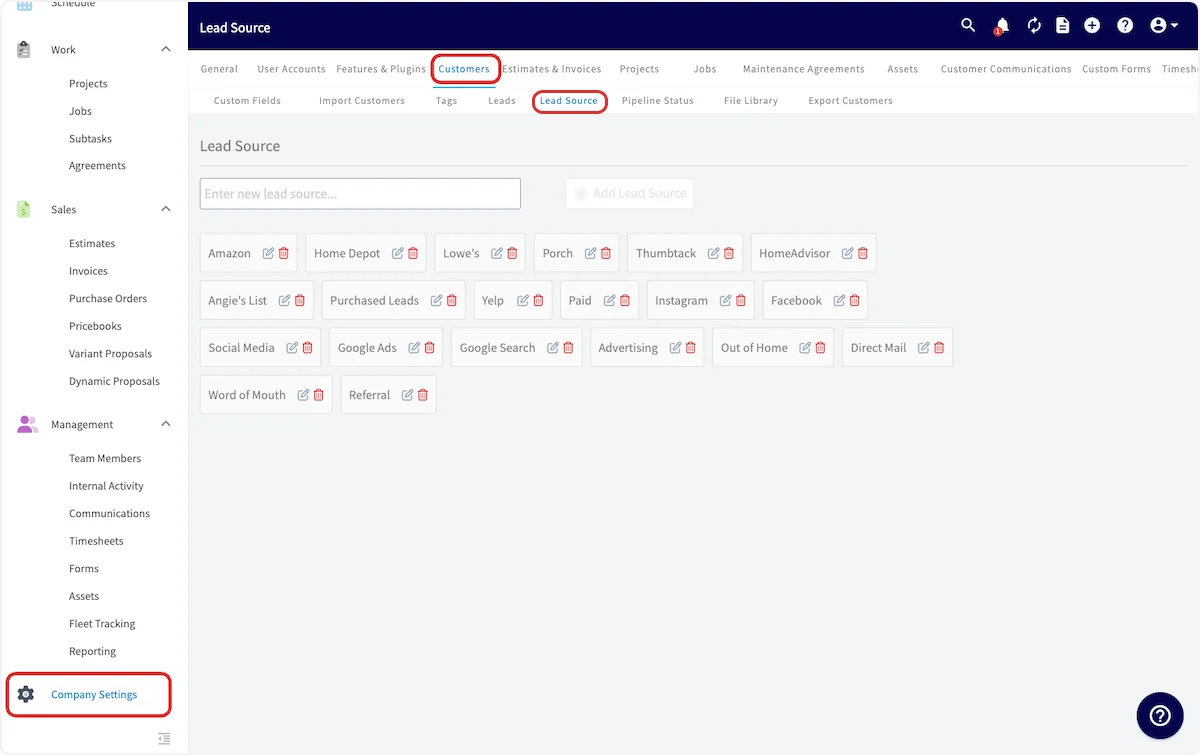
Go to Company Settings > Customers > Lead Source.
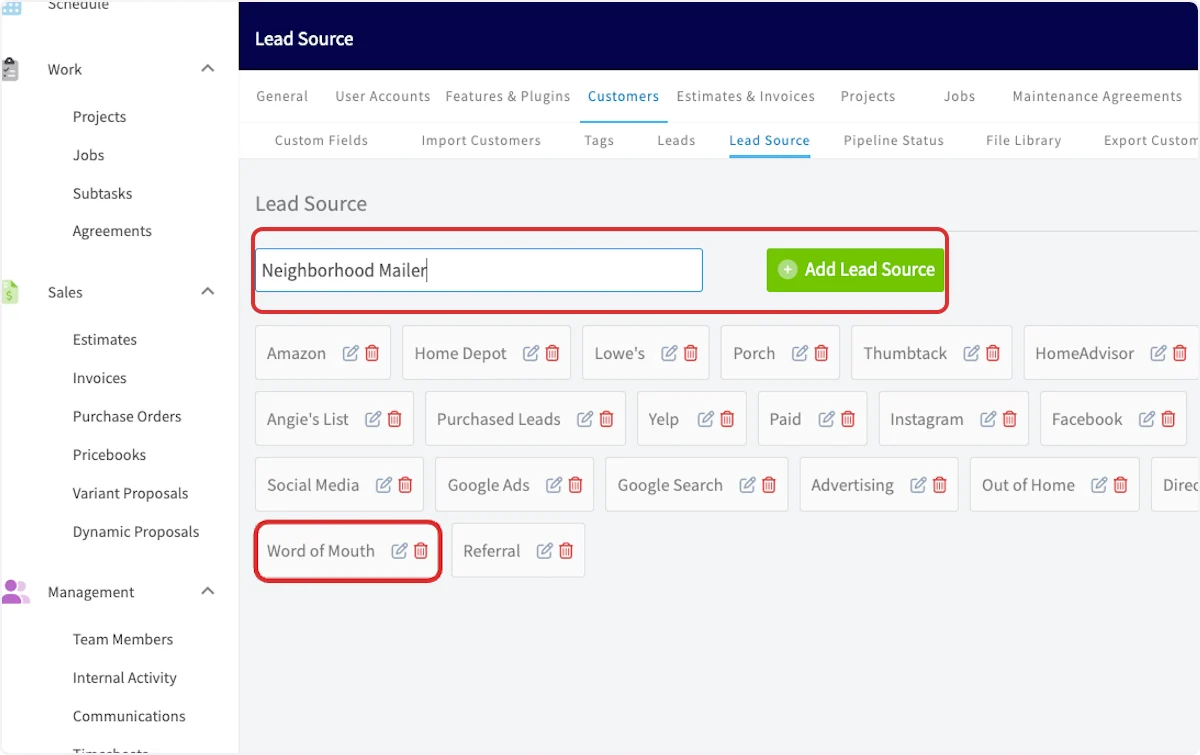
- Type the new lead source’s name, then select Add Lead Source.
Assign a lead source to a customer
You assign a lead source on the customer record — the Lead Source field opens the list of sources you created.- Open a customer record, or start a new customer.
-
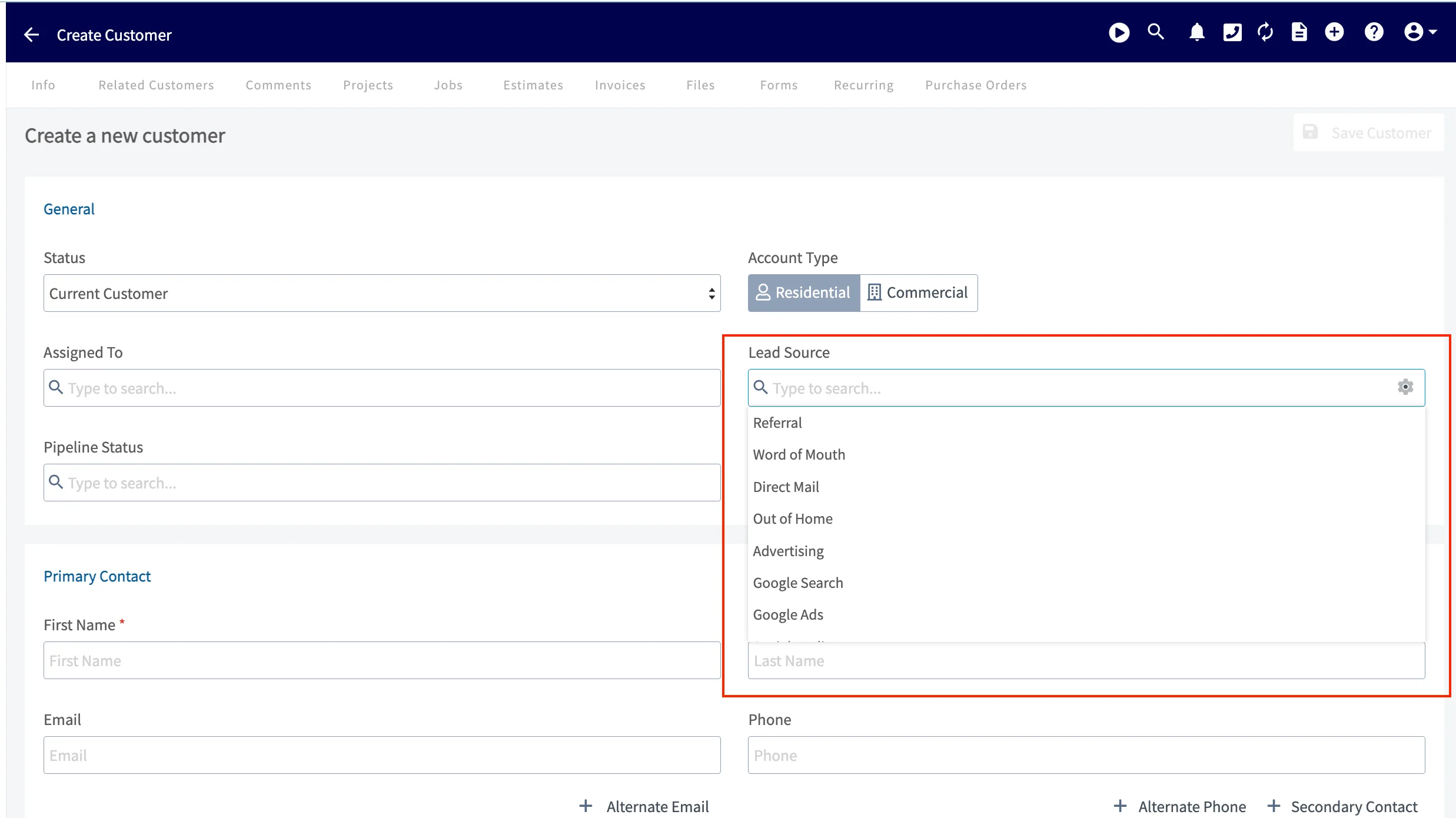
Select the Lead Source field to open the list of sources you created.
- Choose the source that matches how the customer found your business.
- Save the customer record.