Who uses this: Anyone who creates or edits customer records adds and removes tags on those records; the account-wide tag list is managed in Company Settings. Availability: All regions.Custom tags group your customers into lists by trade, service, or any other category you choose. If you do HVAC work for some customers, handyman work for others, and roofing for the rest, you can create HVAC, Handyman, and Roofing tags and pull up each group on its own. Tagging a customer record is how you build those segments.
Overview
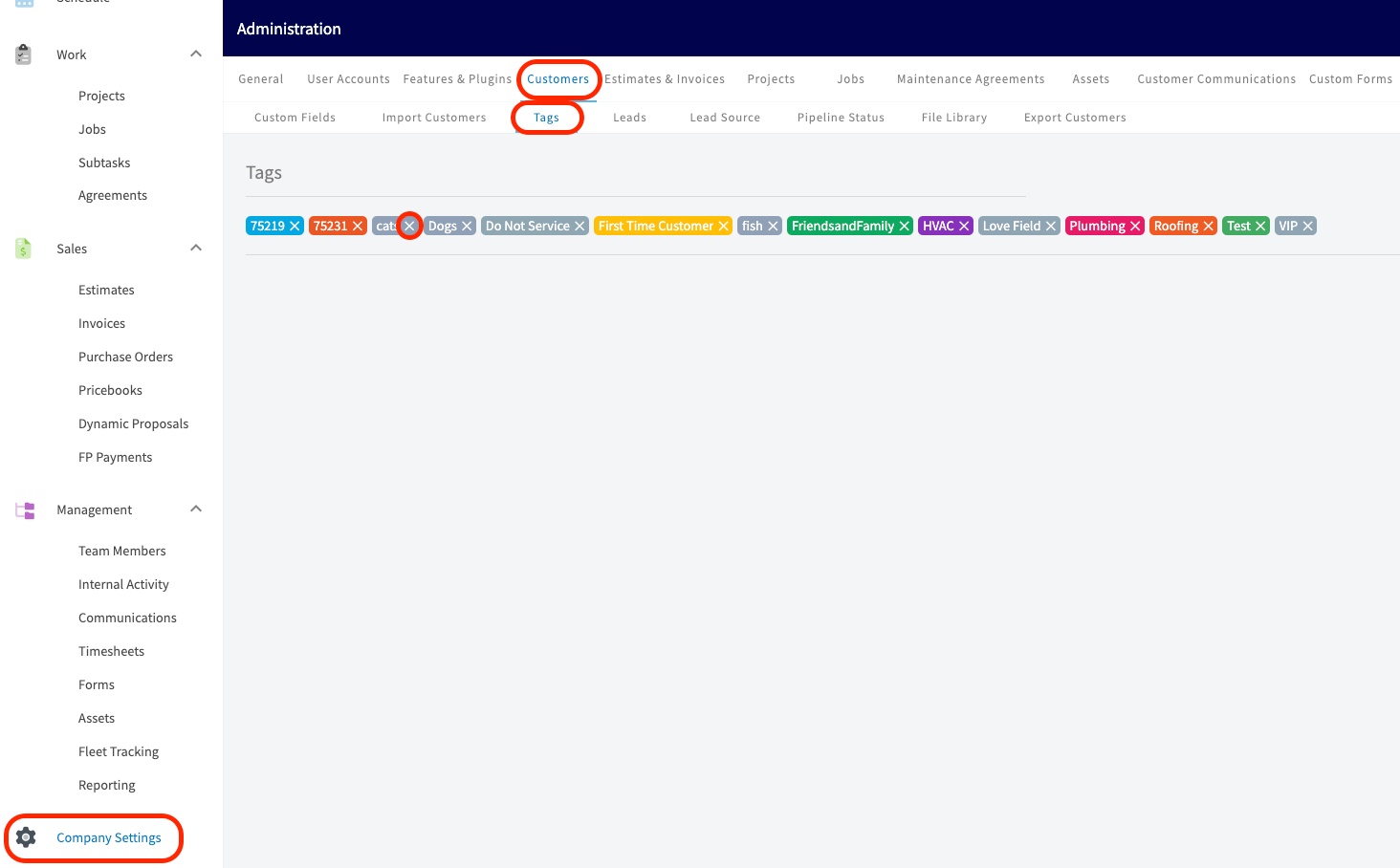
Tagging customers has two parts: you add tags to customer records as you create or edit them, then you open the By Tags tab on the Customers page to see every customer that carries a tag. Any tag you type on a customer record is saved to your account’s tag list, so it is available to pick again on future customer records. Admins create, edit, and import tags in bulk from Company Settings > Customers > Tags. You can also run reports on the tags you create from the Reporting tab.Video walkthrough
Watch a short walkthrough of custom customer tags, then follow the written steps below.Video walkthrough: creating and using custom tags for customers
Add tags to a new customer
You add tags to a new customer in the Tags section at the bottom of the Create Customer form.-
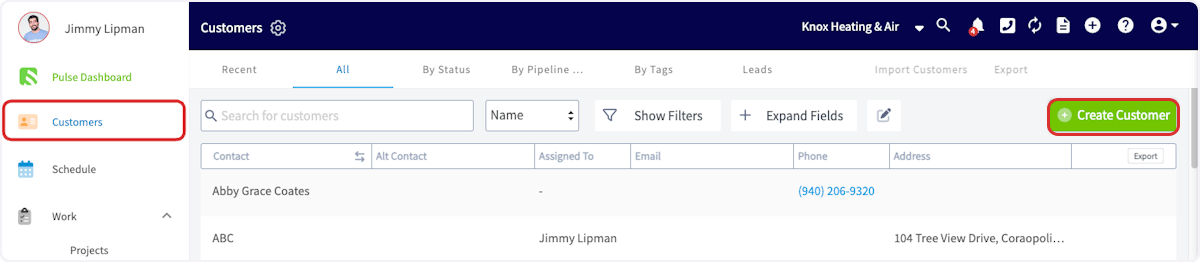
Go to Customers and select Create Customer.
-
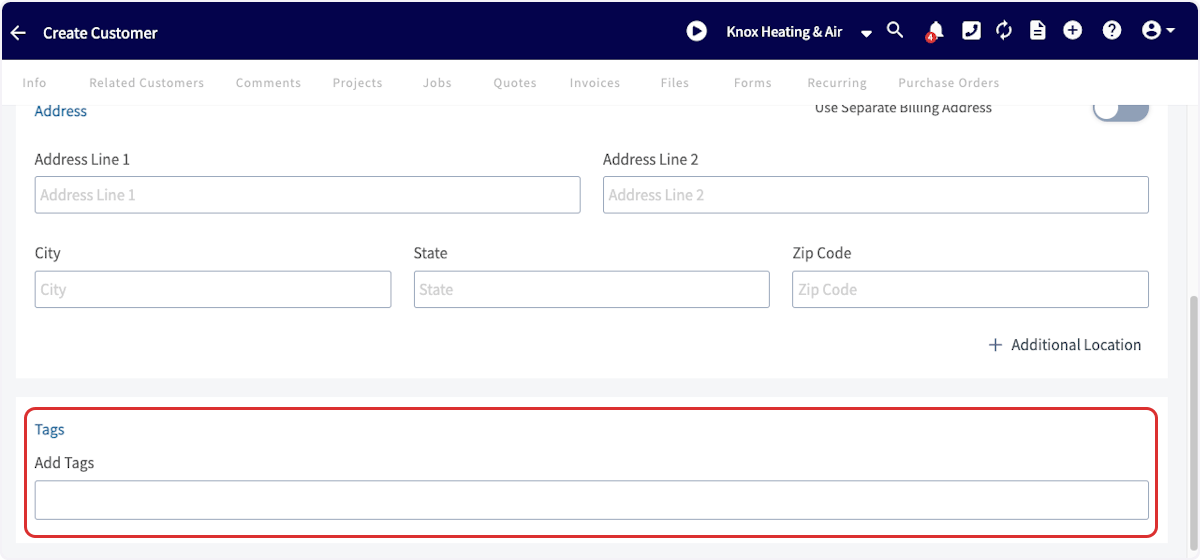
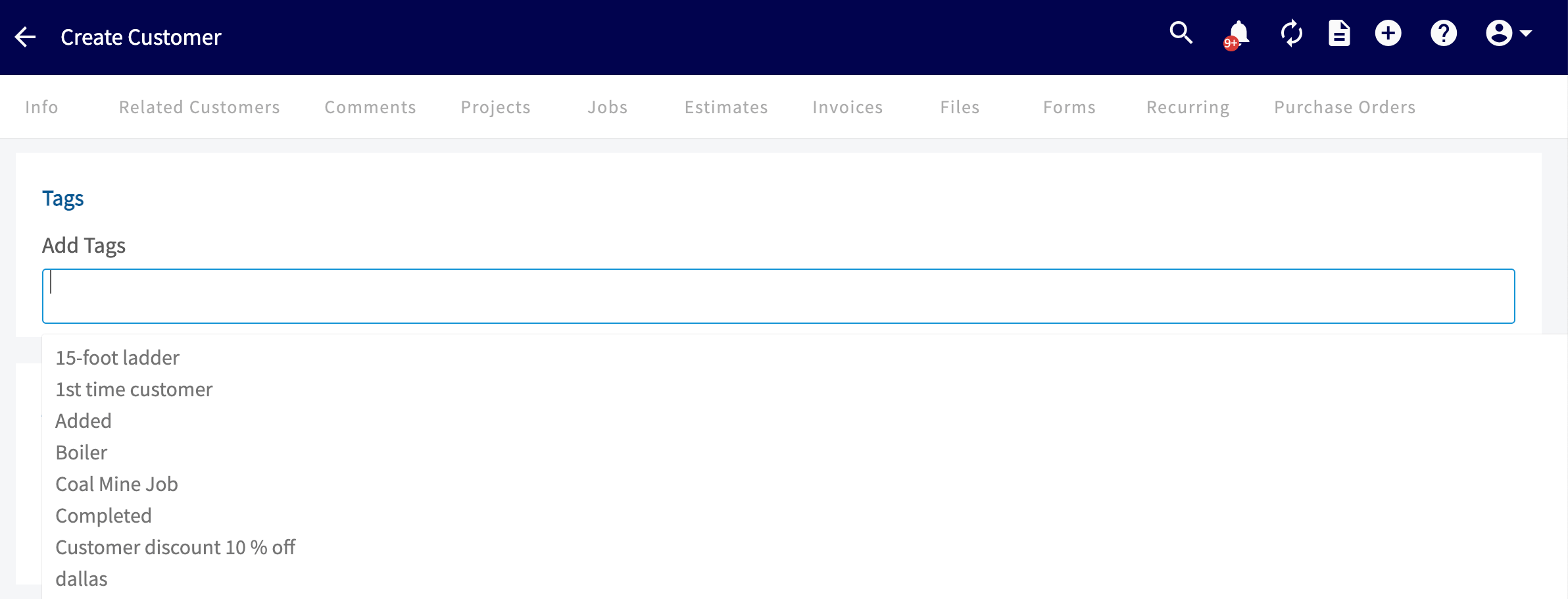
Fill in the new customer’s details, then scroll to the Tags section at the bottom of the form.
-
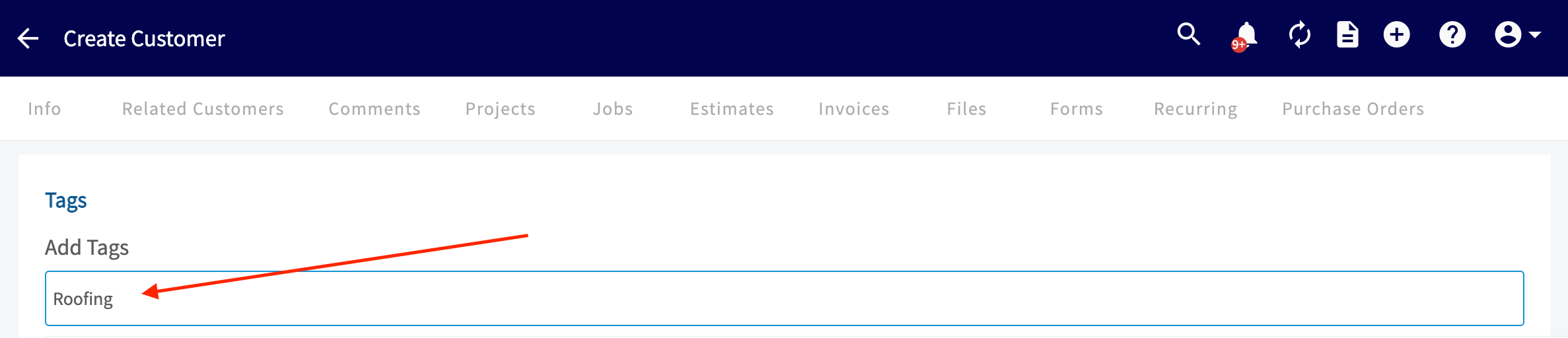
Type a tag name into the Add Tags field and press Enter to add it. Repeat for each tag you want on this customer. To reuse a tag, select it from the list of previously used tags that drops down under the field.
- Scroll to the bottom of the page and select Save Customer.
Add tags to an existing customer
You add a tag to a customer who is already in your system from that customer’s record.-
Go to the Customers page and select the customer you want to tag.
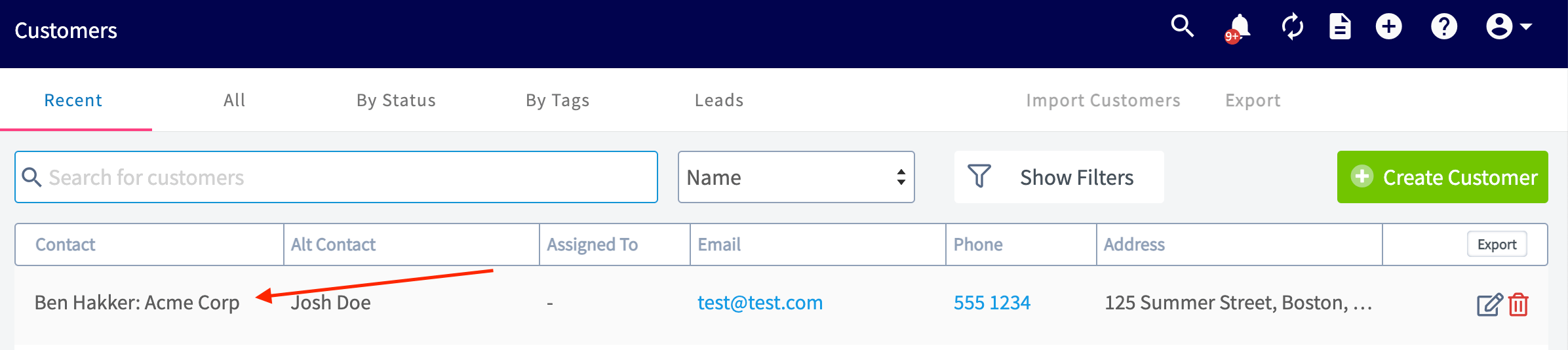
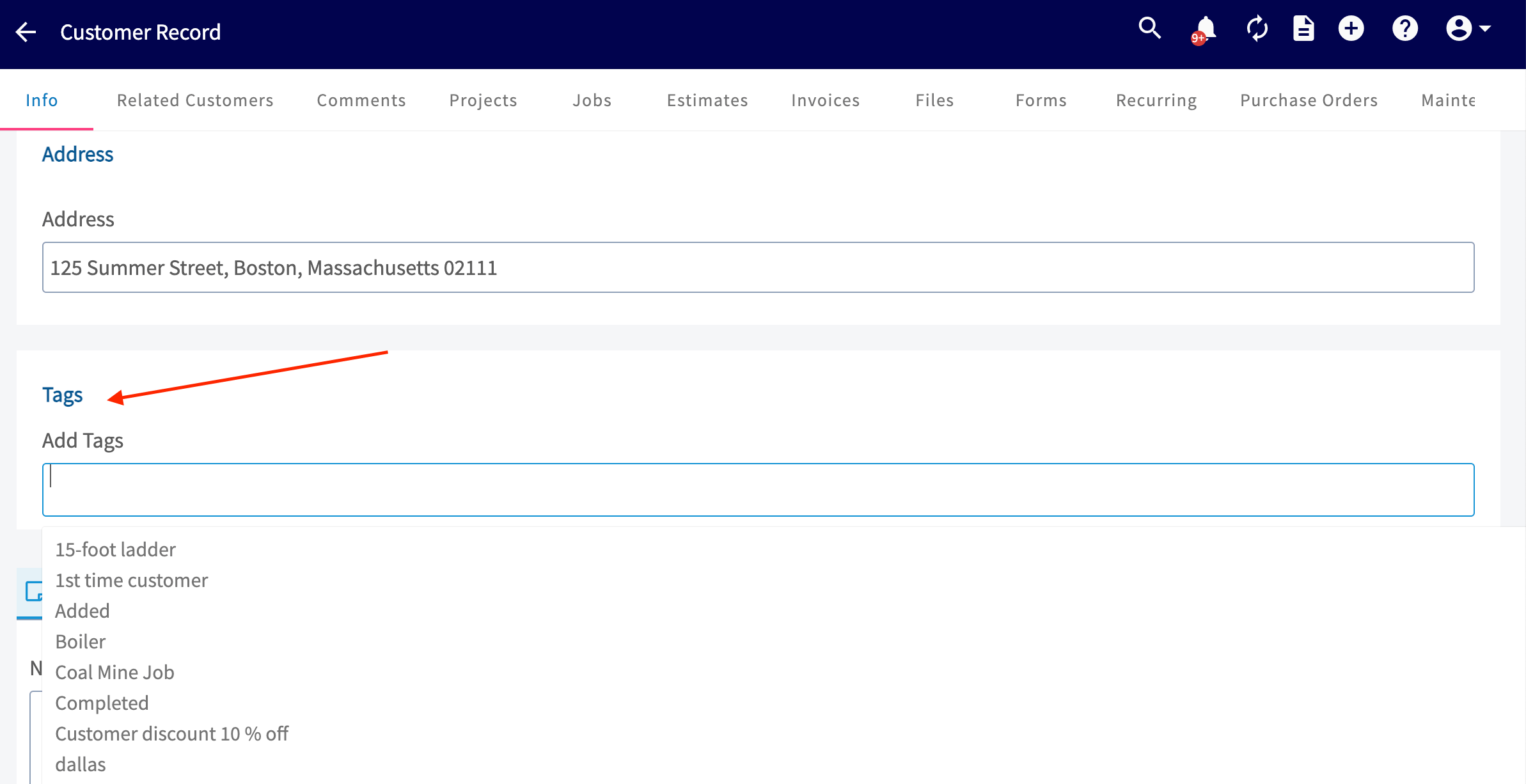
- On the customer record, select Edit and scroll down to the Tags section.
-
Start typing to create a new tag, or select an existing tag from the list that drops down.
- Save the customer record.
View customers by tag
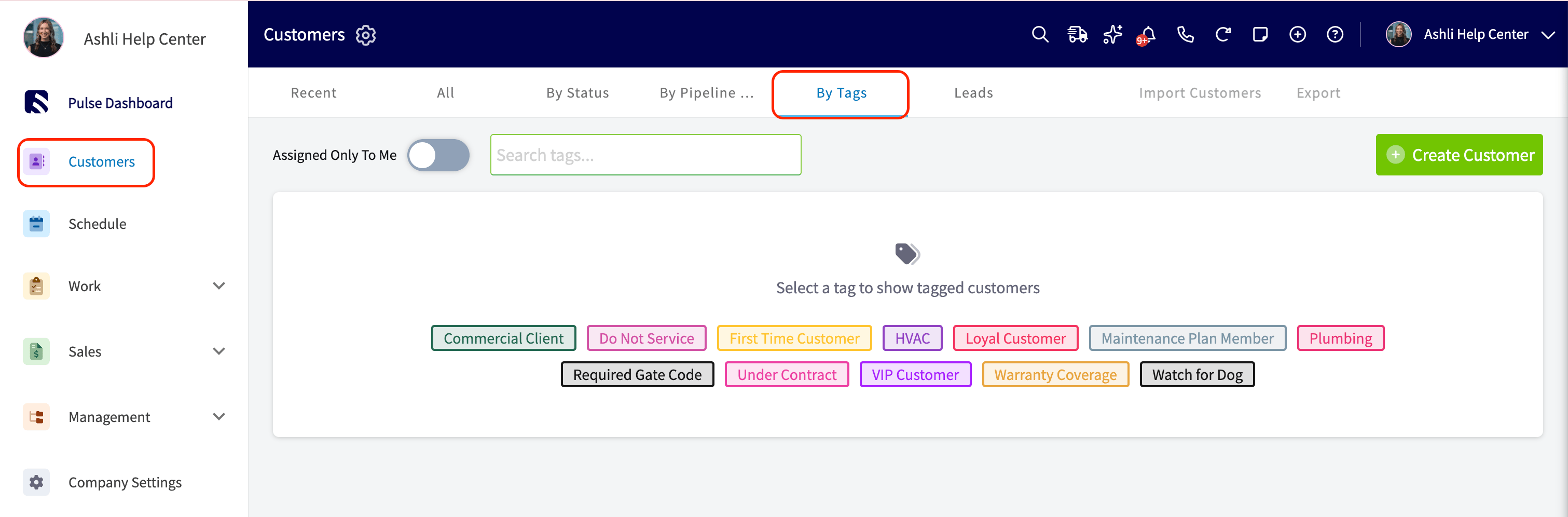
The By Tags page lets you search for one or more tags and shows every customer who carries them. Before you select a tag, the page shows all of your tags as color-coded chips and no customer list. The list appears once you select at least one tag.- Go to Customers and select By Tags.
-
Select a tag in one of two ways:
- Select the search bar at the top of the page, type a tag name, and select it from the results.
- Select a tag from the tags shown on the page.
- The customer list updates to show customers with that tag.
- To add more tags, search again or select another tag chip. Each tag you add appears as another chip and updates the list.
- To remove a tag from the search, select the × on its chip.
Delete a tag
You can remove a tag from one customer, or delete it from your account’s tag list so it no longer appears as an option to choose from.- From one customer record: select the x next to the tag name.
- From your account’s tag list: go to Company Settings > Customers > Tags, select X next to the tag you want to delete.